Digital Workplace UA +380 97 384 64 72

Self-hosted corporate portal

Your company runs on your own server

A workflow designer, employee requests with approvals, tasks and projects with a Gantt chart, CRM with telephony, on-call duty, a knowledge base, mail and analytics in one system — thirty modules on hardware you control. No third-party cloud holds your data, and the price does not go up every time you hire someone.

Licence
One-time or subscription
Hosting
Your server, your database
Interface
English and Ukrainian
Stack
PHP · MySQL · Node.js
portal.your-company.com
Portal home page: tiles with open tasks, overdue items and leads, and below them the employee’s nearest deadlines
Fig. 1Home page: everything that needs this person’s attention today

A note on the screenshots: the interface is shown in English, the content is a real Ukrainian company’s data. Status names and other dictionaries are deliberately not translated by the portal — you name them yourself, in your own language.

Why this matters

A portal that cannot be taken away

In June 2023 Bitrix24 stopped operating in Ukraine. Companies that had spent years building their processes inside it were given weeks to find a replacement — along with their customer base and their entire task history.

That was one vendor in one country, but the mechanism is general. A hosted suite can be withdrawn from your market, repriced, put behind a tier you did not plan for, or made unavailable by sanctions and export rules. None of those decisions are yours, and you usually learn about them after they are made.

Digital Workplace is built so that the question does not arise: the code and the database sit on your server. If we disappeared tomorrow, your portal would keep running.

Your data never leaves

The portal runs on your VPS or your own hardware, in the country you choose. Backups stay with you. No outside party holds your customer base — which also makes residency and processing questions simple to answer.

Full source, no lock-in

You get the PHP and MySQL sources, not a sealed appliance. Plain stack, plain database: any competent developer can read it, extend it, or export everything without asking us.

No per-seat pricing

The number of users does not change the price. Hire ten people and you simply create ten accounts — the cost of collaboration stops growing with headcount.

Changed to fit your work

New fields, statuses, reports, integrations with the accounting system you already run. The product bends to the company, not the other way round.

Modules · 30 included

One system instead of a dozen separate subscriptions

Tasks, projects, requests, clients, calls, conversations, documents, training and mail live in one place and reference each other. Nothing has to be reconciled between a chat tool, a spreadsheet and an inbox — and no answer has to be hunted across seven tabs.

Tasks

Deadlines and priorities, co-assignees, watchers, checklists, files, threaded comments and a full change history.

kanbanwork acceptancesubtasks

CRM: leads

A pipeline from first call to signed deal. Round-robin assignment, duplicate detection, and a mandatory reason for every loss. An existing client base is brought in by the CSV/Excel import — with column guessing and a dry run.

kanbanauto-tasksCSV · XLSX import

Companies

A client record with registration details, several bank accounts, contact people, documents and the full interaction history.

tax IDsIBANCSV export

Analytics

Who delivers on time, who slips, who is overloaded. Sales funnel, lead sources, manager performance.

rankingsby monthexport

Chat

Direct and group conversations, files, replies, @-mentions. A task card opens its own thread.

unreadattachmentsauto-cleanup

Company news

Announcements for everyone or for specific departments, pinned to the top, with reactions and read receipts.

who read itreactionscomments

Workgroups

A project or department with its own task list, chat and news feed. Open groups, or join-by-request.

moderatorsarchivestatistics

Org chart

Departments, managers, positions and employee records. This is how the system knows whom to escalate an overdue task to.

department treepeople search

Workflows

A visual designer: branching approvals, parallel departments, a deadline on every step, values substituted from the request form. Start it by hand, by event, on a schedule or through the API.

12 step typesbranchesescalation

Requests

Leave, an employment certificate, access to a system, a new laptop, a repair — a catalogue with short forms instead of “can I please have…” messages. The step a request sits on, and the person holding it, are visible.

short formapproval routemy requests

On-call duty

Who is reachable after hours: an “I am on call” button, a badge with a phone number in the top bar, a “when I can” calendar, a schedule set in advance and a report with night and weekend hours.

schedulenight hoursreport and CSV

Knowledge base

Category tree, search across titles and article text, revision history. An article can be open to everyone or restricted to chosen roles, departments or individuals.

full-text search30 revisionspermissions

Mail

Mailboxes connect over IMAP: read, reply, attachments, and a task created straight from a message. Personal mailboxes and shared ones such as info@.

IMAP · SMTPshared mailboxestask from mail

Training

Courses built from materials and quizzes, mandatory briefings with a deadline, annual retakes, a printable certificate. You can see who completed it and who did not.

quizzesretakescertificate

Calendar

Meetings with attendees and rooms, leave and sick days, birthdays. Task and workflow deadlines land here by themselves. Subscribe from a phone over iCal.

roomswho is awayiCal

Recruiting

A hiring request, a vacancy published on the site, a candidate pipeline with configurable stages. CVs are visible only to HR and the hiring manager.

pipelineduplicate candidatesstatistics

Website & enquiries

A public company page with vacancies and a contact form. A submission becomes an enquiry inside the portal, with an owner, within the minute.

landing pageform protectionvacancies

Calls

Connects to Binotel IP telephony: a call log, call history inside the client record, and click-to-dial. A missed call turns itself into a “call back” task. Calls and video between colleagues run inside the portal itself, with no external telephony.

click-to-dialinternal videomissed calls

Idea box

Ideas, suggestions and complaints with anonymity that actually holds: the author is not stored in the database at all. Staff surveys, upvoting, and a board of what was implemented.

anonymoussurveysreply deadline

Files

A personal drive for everyone and a shared company drive with per-folder permissions. Files can live on the server or in S3 or Google Drive — the portal behaves the same either way.

quotasshared foldersS3 · Google

Time tracking

Hours against a task, a project or a client. Everyone logs their own; seeing other people’s hours takes a separate permission. Next to it — a separate on-call tab with night and weekend hours.

per taskon-callperiod report

AI assistant

The assistant sits in the sections themselves: a “✨” button in an email, an enquiry, a task, a chat and the editor — summarise, draft a reply, break work into steps. Point it at a cloud model with an API key, or at your own model running through LM Studio — in which case no text leaves the building.

local modelcost trackingswitched off by permission

Projects

A workgroup with a goal, a lead, stages and a deadline. Completion is computed bottom-up from the tasks inside the stages — it cannot be typed in by hand. Dates are shown on a Gantt chart, and bars can be dragged right there.

Ganttstages and templatesclosing summary

Time off

A request, not a row in a spreadsheet: the manager gets a notification with Approve and Decline, and the remaining days are shown right in the form. A stand-in can be named for the time away — approvals then go to the deputy instead of nowhere.

days leftstand-inshown in calendar

Hardening

A nightly watchdog compares the disk against the release file list, uploads are checked by real content type, and scanners are blocked on their own.

file watchdogCSPsecurity review

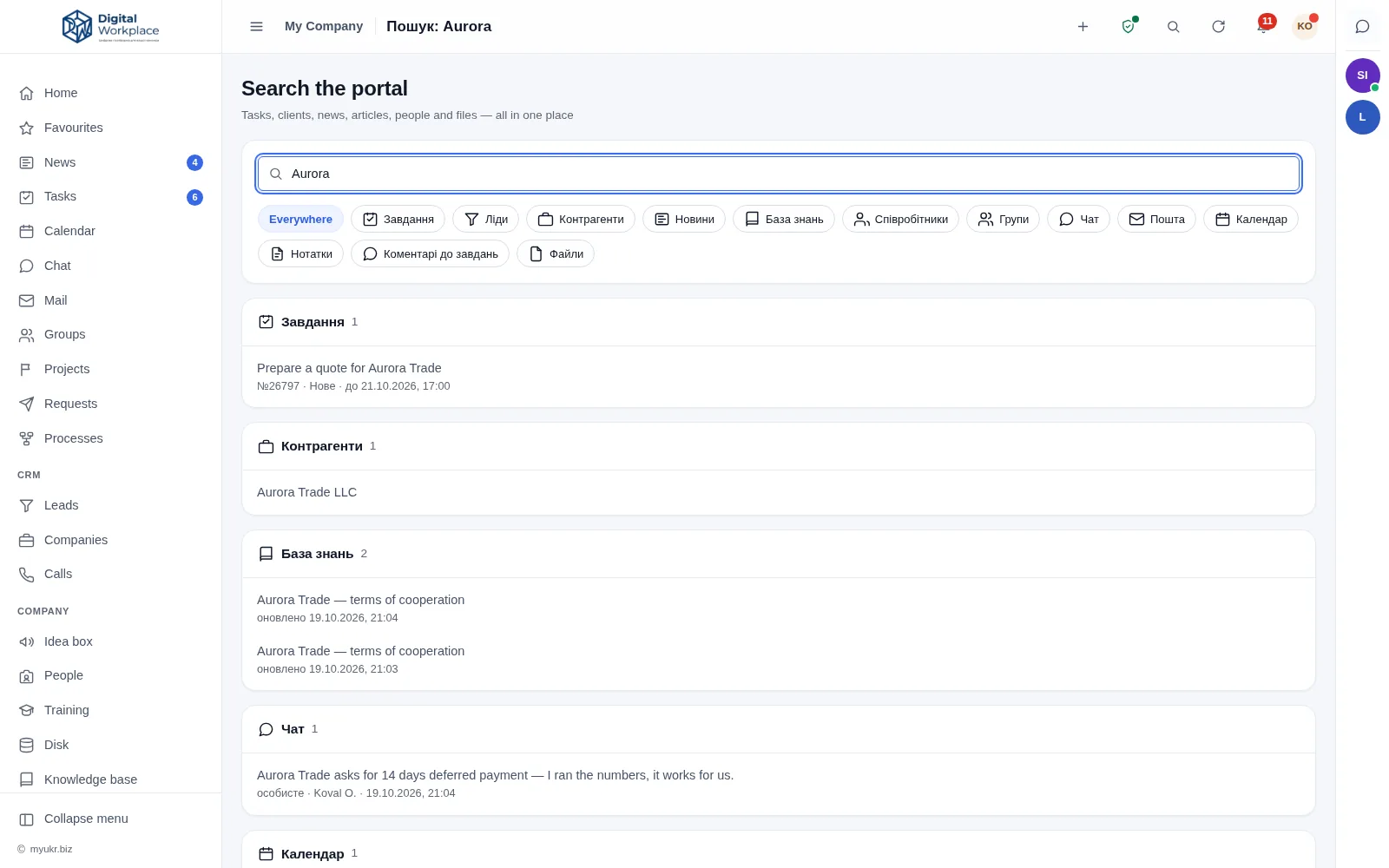
Portal-wide search

One field searches tasks, leads, articles, notes, emails, chats, comments and files — and shows only what this person is allowed to see.

full-textrespects accessfilter by section

Notes

A notepad that opens on top of any page: colour-coded notes, version history, and turning a note into a task in one click.

on top of any pageversionsnote → task

Company radio

One station for the shop floor, the warehouse or the call centre: the list is set by an administrator, and everyone listens from their own machine — on a desktop or a phone, without leaving the portal.

stationsworks on phonesown volume

Tags and custom fields

Your own fields on tasks, leads and companies — no development required: text, number, date, list. Colour tags and filters that use them in lists and reports.

custom fieldstagsfilters

Integrations

API keys for external systems, website enquiries, signed outbound webhooks, and a two-way Telegram bot: approve a request, take a task or reply with a comment without opening the portal. Sign-in by password or through Google and Microsoft.

REST APIwebhooksTelegram botGoogle · Microsoft sign-in

Online store

A storefront on the same portal and the same database: a filtered catalogue, products with variants, cart and checkout, customer accounts, carriers, card and instalment payments, fiscal receipts, marketplace feeds, ad-source reports and stock exchange with your accounting system. An order becomes a task for a manager, and the buyer becomes a record in the directory. Carrier, payment and fiscal integrations currently ship for the Ukrainian market and are adapted per country.

product variantsdiscounts & promo codesdeliveryfiscal receiptsmarketplace feedsstock sync

See everything the store does

separate module
priced separately

Workflows · 12 step types

Approvals that move on their own

Leave requests, purchases, onboarding, petty cash — sequences most companies keep in someone’s head, in email and in a chat thread. Here you draw the sequence once, and after that it runs without reminders and without “wait, who was supposed to approve this?”.
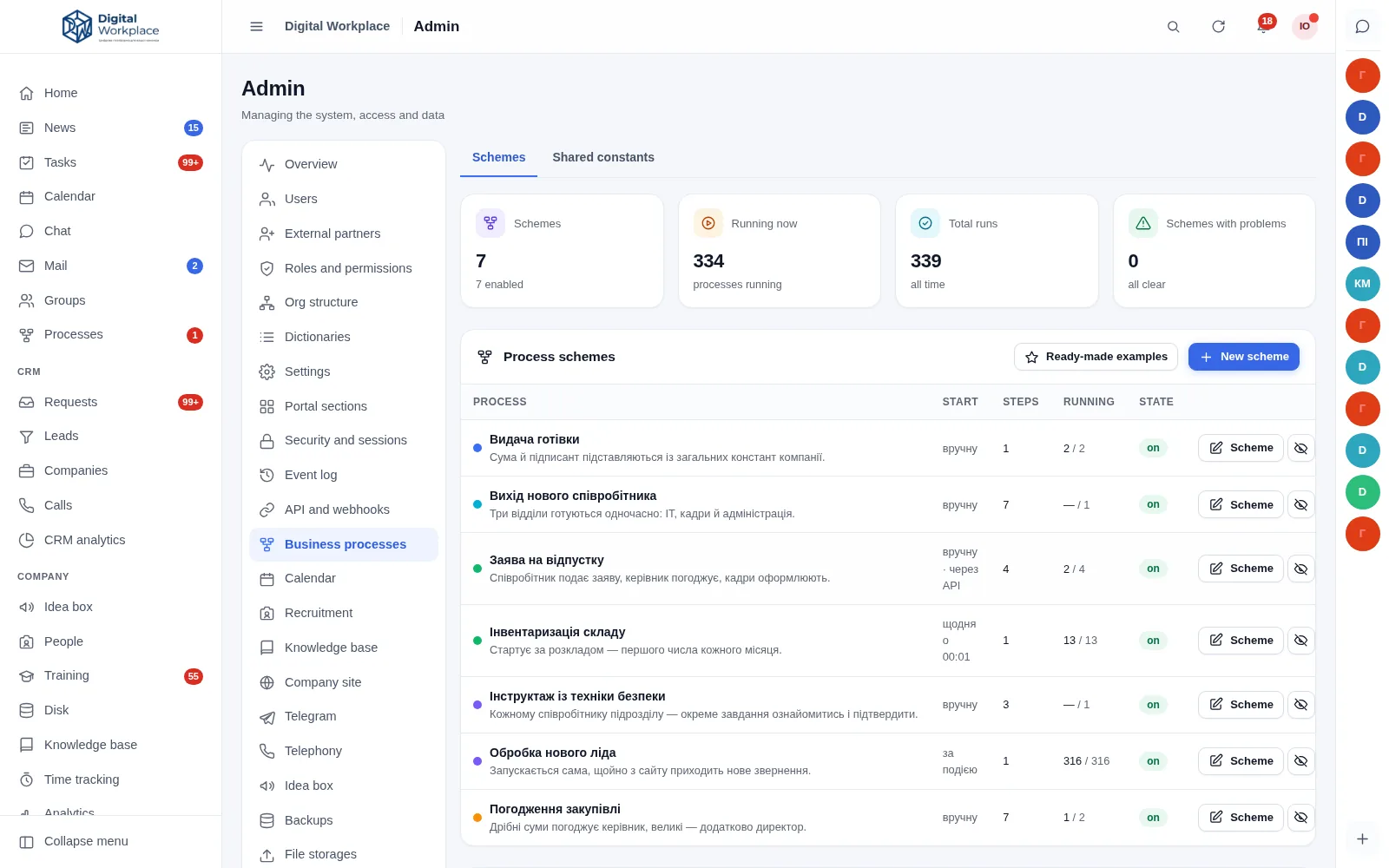
  • Branches, not a straight list. An approval step splits the flow in two: what happens on yes, and what happens on no. A condition compares a number from the form against a company constant — above the threshold it goes to the director, below it straight to accounting.
  • Twelve step types. Approval, task, request for information, condition, parallel branches, loop over people, notification, pause, data change, webhook call, start another workflow, finish.
  • A deadline on every step. “2 working days” counts working days. An overdue step does not sit there quietly — it raises a separate alert to the manager.
  • Placeholders instead of hard-coded names. {{form.amount}}, {{const.director}}, {{starter.name}} — the diagram stores a reference, not a person. When the director changes you edit one constant, not twenty diagrams.
portal.your-company.com/admin/processes
The workflow designer for a purchase approval: a manager approval step, an amount condition below it, and the “yes” and “no” branches
Fig. 2The designer. “Approved” and “rejected” branches run as separate columns

What the employee sees

Not a diagram — a case you can follow

Nobody needs to understand the diagram. They see which step the case is on, who is holding it up and what has already been done. Tasks produced by a workflow are ordinary portal tasks: deadlines, files, and counted in the same performance statistics.
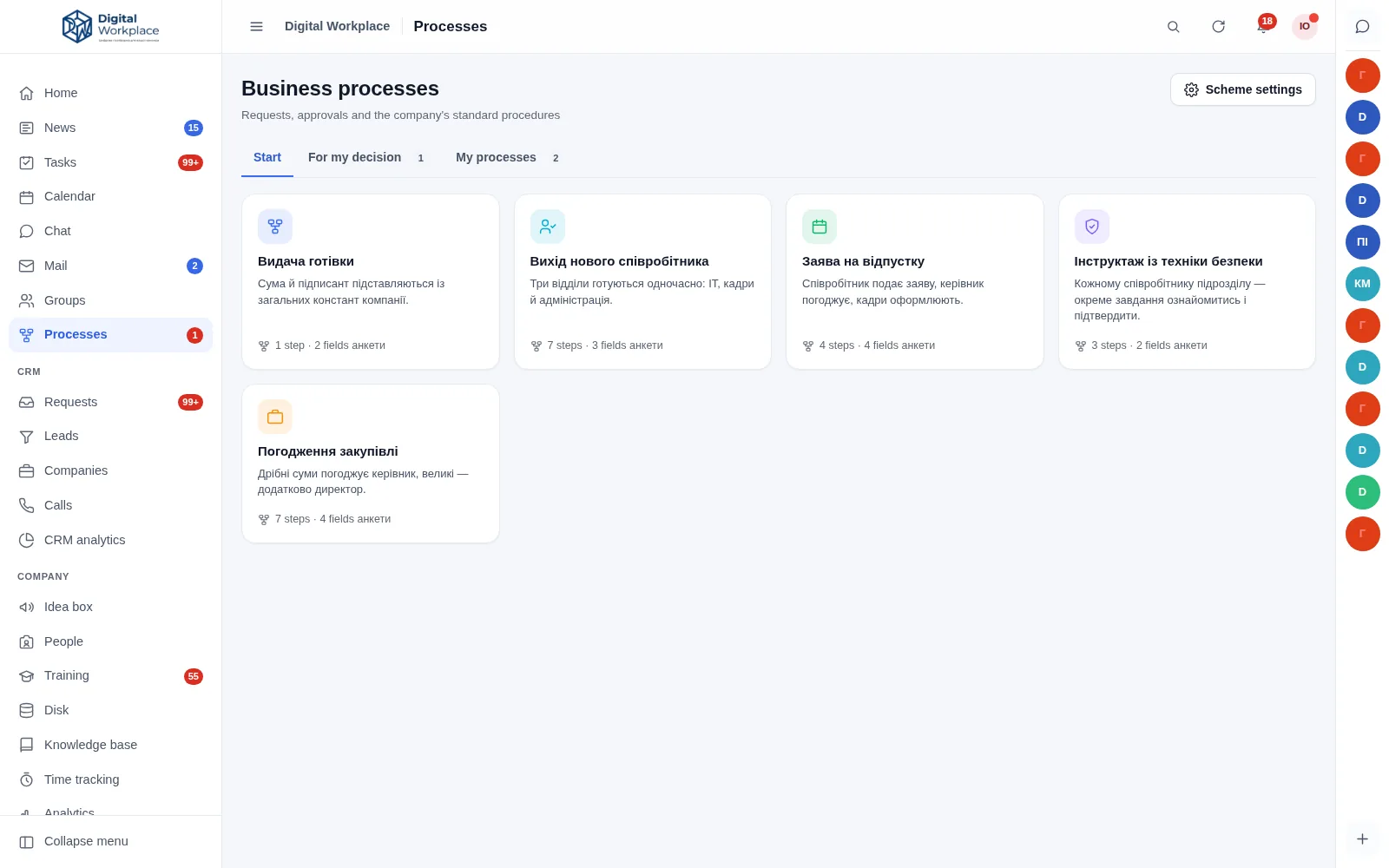
  • Parallel departments. One step can open three branches at once: IT prepares the laptop, HR handles paperwork, facilities issues the pass. The workflow continues when all of them are done.
  • Loop over people. A single step creates a separate task for every member of a department, group or role — how briefings go out and acknowledgements come back.
  • Four ways to start. By hand, by event (a website enquiry opens the workflow immediately), on a schedule (stocktaking on the first of the month), or through the API from an external system.
  • A log with no gaps. Who started it, who approved, when, with what comment and what data — all of it stays on the workflow card.
portal.your-company.com/processes
An onboarding workflow card: three parallel tasks for different departments, the collected form data and the event log
Fig. 3Workflow card: progress, collected data and the log

An honest word about the market

A real workflow designer is rare, not a checkbox

In most task trackers “automation” means a rule: status changed, assign someone. A diagram with branches, approvals, parallel departments, per-step deadlines and values substituted from a form is a different thing entirely — and among all-in-one corporate portals, very few products actually have one.

We are not claiming nobody else can do this. Dedicated BPM platforms can, and they go deeper. But that is a different class of product: a per-user licence, an implementation project with consultants, and no corporate portal in the box — tasks, chat, news and the customer base would all be bought separately.

Digital Workplace gives you the scenario companies actually buy these suites for — request, approval, task, notification — on your own server, with no per-seat fee.

Templates in the box

Leave request, purchase approval, employee onboarding, safety briefing. Run them as they are, or rework them to match how you actually operate.

Company-wide constants

Director, accountant, amount threshold, approval window — set once for the whole company. Diagrams reference the constant, not the person.

Running cases do not break

The diagram is snapshotted when a case starts. Keep editing it — cases already in flight finish under the rules they began with.

Documents travel with the case

An invoice attached at the start is visible on every later step and inside the accountant’s task. Nobody digs through email for it.

The form asks only what matters

A field appears on a condition: answer “no” to “Contract needed?” and the bank details and the date disappear. The condition is evaluated on the server, so a hidden field is neither required nor stored.

A workflow can be its own menu item

“Travel request” becomes an item in the left menu with its own icon and its own roles. Nobody needs to know the words “business process” to use it.

Requests · a form instead of a message

“Can I get a certificate?” stops being a chat message

Leave, an employment certificate, access to a system, a new laptop, an equipment repair. The employee opens the catalogue, picks what they need and fills in a short form — from there the request follows its approval route on its own.
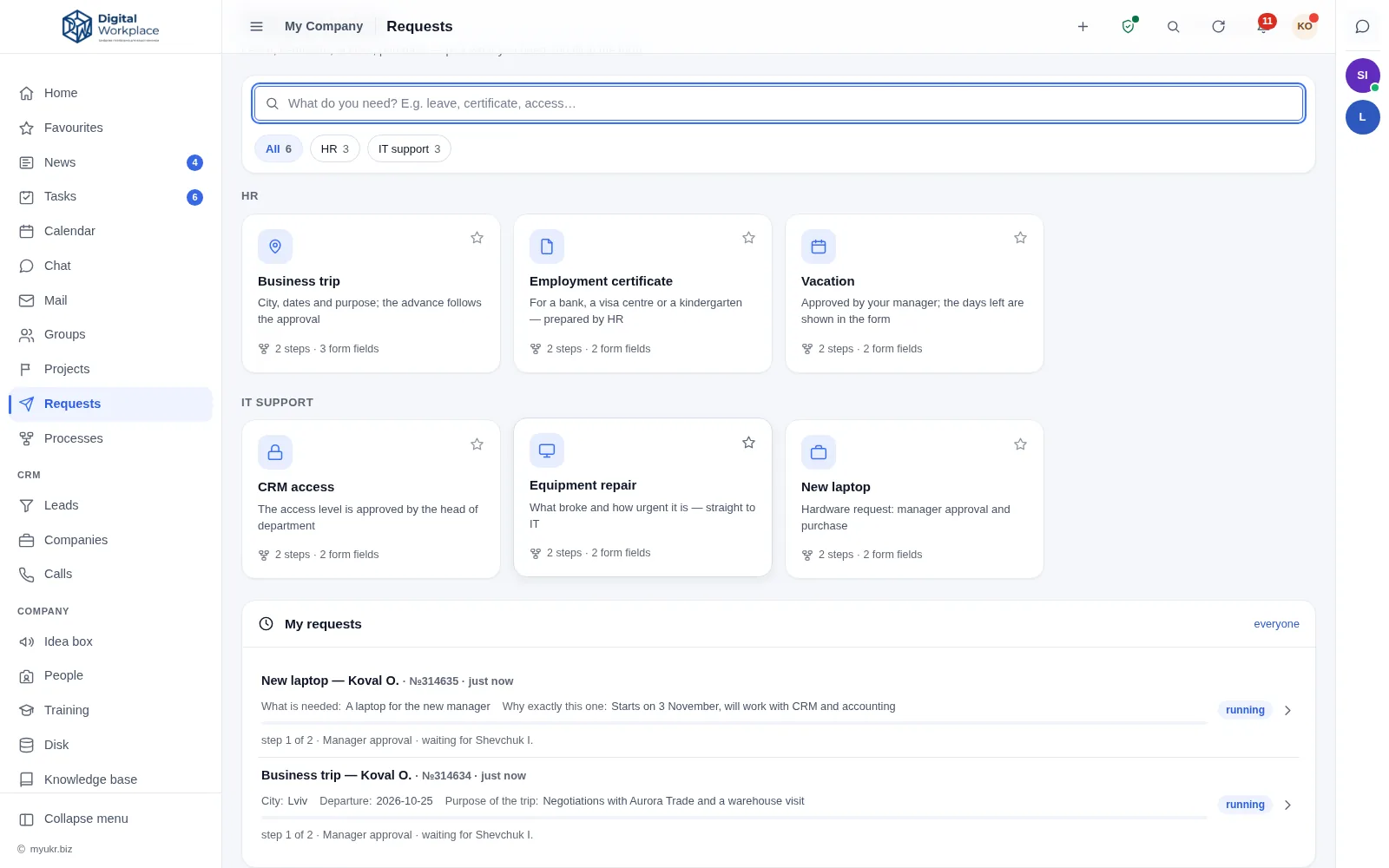
  • A catalogue, not a hunt for the right person. Cards grouped by category: HR, IT support, purchasing. A new hire does not ask who to go to — they see what can be asked for at all.
  • The form asks the right questions up front. City and dates for a trip, the access level for CRM, “what exactly broke” for a repair. Half of the back-and-forth disappears before the request is even submitted.
  • You can see where it stands. “Step 1 of 2 · Manager approval · waiting for Shevchuk I.” — nobody has to ask what happened to their request.
  • “My requests” shows the data, not just a title. The list carries what the person actually entered: city, amount, model. Two similar requests never get confused.
  • Any request is built in the designer. A new form is added by an administrator in the workflow designer — with approvals, branches and deadlines. No developer involved.
portal.your-company.com/requests
The Requests section: request cards grouped into IT support and HR, and below them My requests with the submitted form data and the approval step
Fig. 4The request catalogue and “My requests” with the approval step

Tasks · delivery discipline

You can tell what was done from what was promised

A task closes when the person who set it accepts the result, not when the assignee clicks “done”. That one rule is why the statistics describe reality rather than self-assessment.
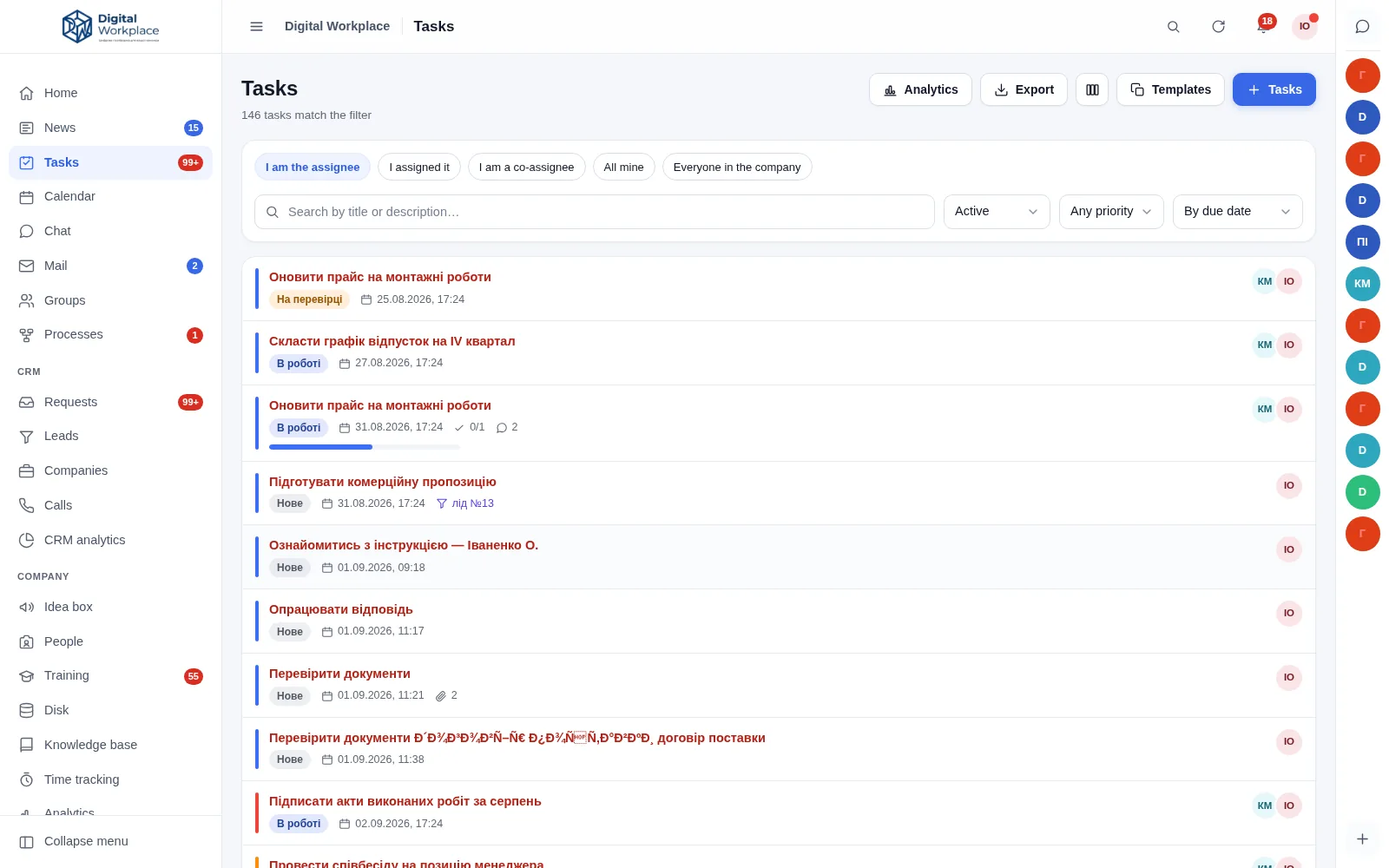
  • Work acceptance. The task goes to review, and only its author moves it to “completed” or sends it back.
  • Monthly rankings. On time, late, not done — per person and per department, exportable to CSV.
  • Reminders before the deadline. A few hours before time runs out the assignee is notified — in the portal and in Telegram.
  • Escalation to the manager. A task more than a day overdue raises a separate alert to the department head.
  • Task order. “This one can only start after that one”: the portal will not let it finish earlier, and the moment the predecessor closes, the next assignee gets a notification.
  • A task in one line. “Call Kovalenko tomorrow at 10” — the portal parses the deadline out of the text and shows the date it recognised before you save.
  • Bulk actions. Select thirty tasks, reassign them, move the deadline. The answer is honest: “changed 28 of 30 (no rights: 2)”.
  • Nobody accepts their own work — not a manager, not an administrator. A task you set yourself simply closes with “Finish”, without the theatre of reviewing yourself.
portal.your-company.com/tasks
Task board with New, In progress, In review and Completed columns
Fig. 5Task board. Overdue items are marked in red

Delivery analytics

One number that tells you where you stand

Discipline is the share of tasks delivered on time. You see it for the company, for a department and for each person, broken down by month — alongside who is performing, who is overloaded and who needs help.
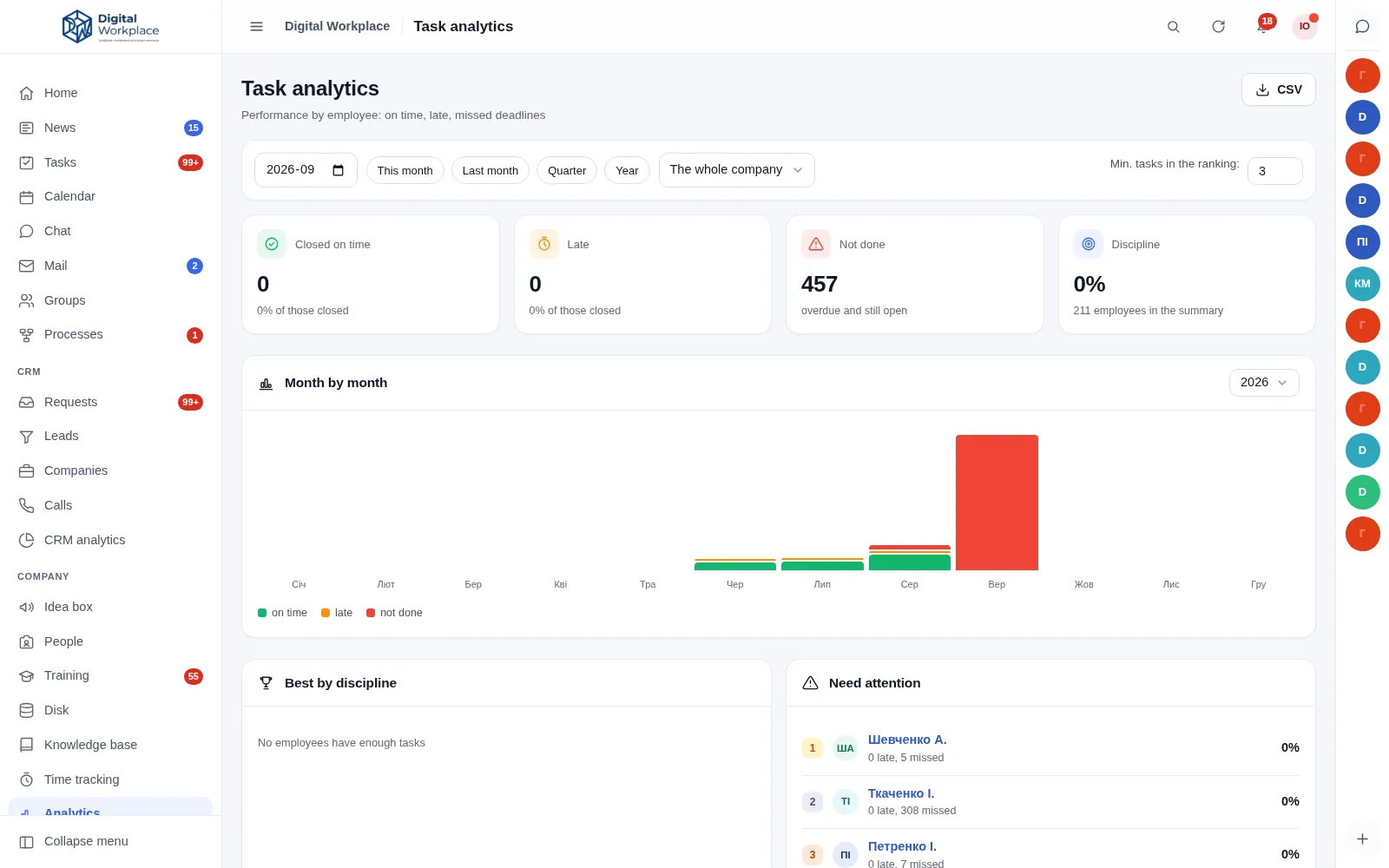
portal.your-company.com/analytics
Task analytics page: on time, late and not done, with delivery discipline as a percentage
Fig. 6Task analytics for the selected period

Projects · stages, dates, completion

When there is more work than fits in one head

A project is the same workgroup, but with a goal, a lead, a delivery date and stages. Renovations, rollouts, a store launch, a warehouse move — anything that runs for months and consists of dozens of tasks.

Completion is computed, not typed

The main reason nobody trusts project status reports is that the number in them is typed by the person responsible for the project. Here it is assembled bottom-up: from tasks into stages, from stages into the project. There is no field to overwrite.
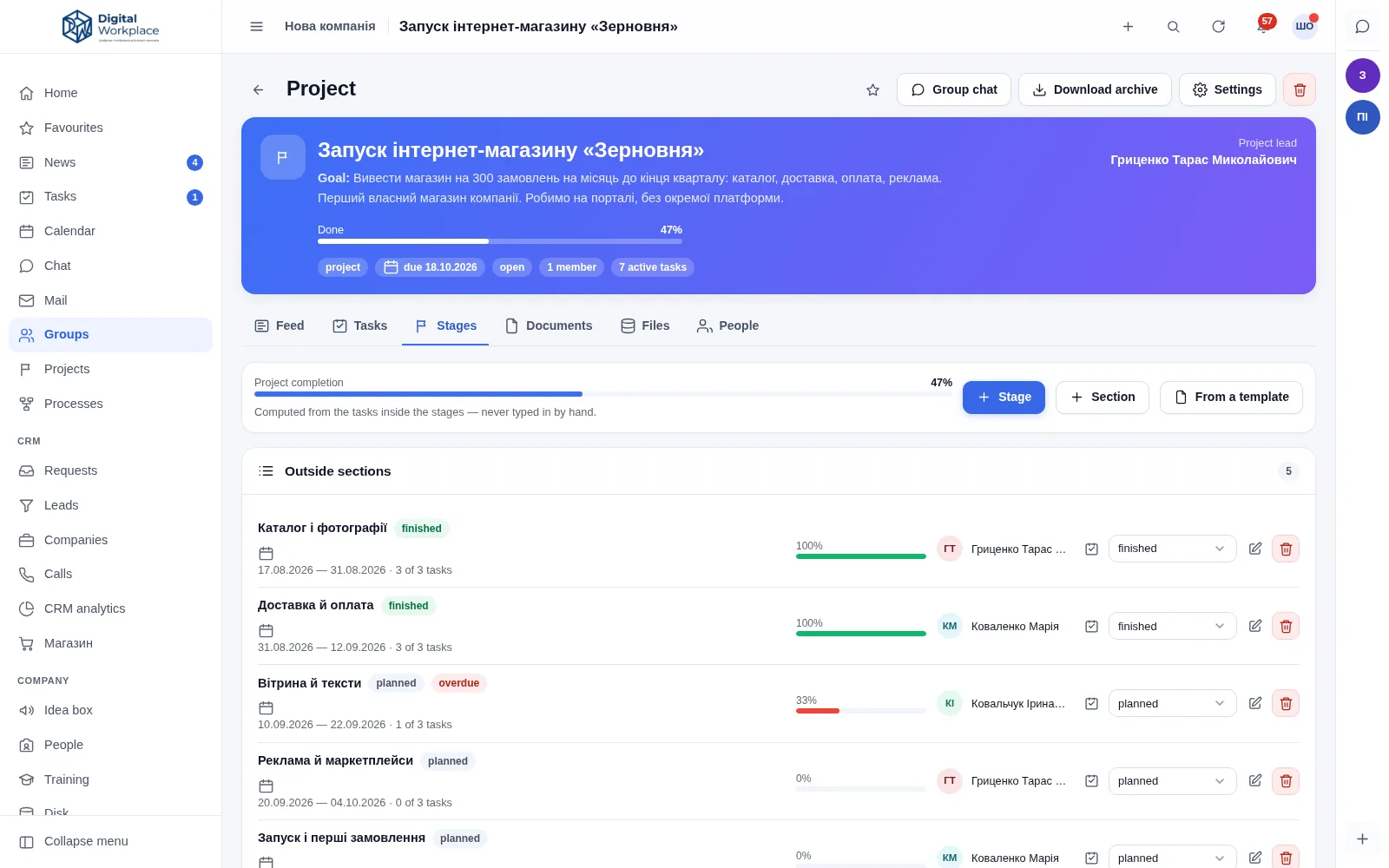
  • Stages with dates and an owner. Each has a plan, an actual and its own status colour: planned, in progress, finished, overdue.
  • Project templates. A set of stages offset in days from the start date: a typical rollout unfolds in one click, and a finished project can be saved as a template for the next one.
  • Closing with a summary. When every stage is finished the portal offers to close the project — the decision stays with a person. Closing stores plan versus actual per stage, the delay in days and the list of overdue tasks.
  • A stage can start a workflow. Starting “Installation” raises a materials request; finishing it starts the acceptance case.
  • External participants. A contractor or a client can be let into the project without opening the rest of the portal to them.
portal.your-company.com/projects
Project card: goal, project lead, completion percentage and a list of stages with dates, owners and progress bars
Fig. 7Project stages. The 47 % comes from the tasks, not from a text field

Gantt

Dates as bars, not as a list

Stages and the tasks under them share one timeline with a “today” line. A bar can be dragged to move a deadline, or pulled by its right edge to extend it — and that is a change to the task itself, not a drawing in a report.
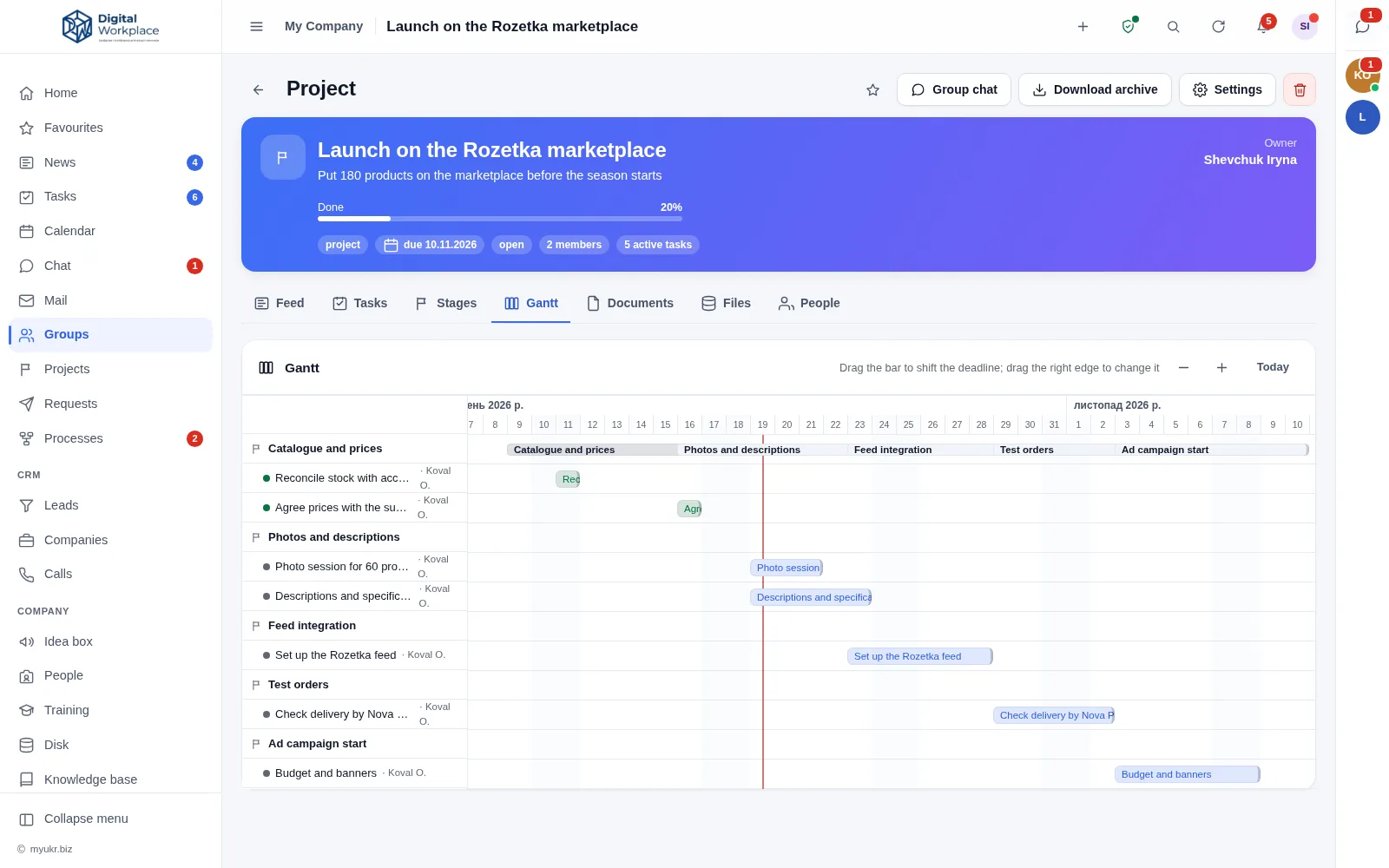
  • From a week to a quarter. Short work reads day by day; a long project fits on one screen.
  • Overdue shows up in red on the chart. You do not have to look for it in the task list — it finds you.
  • A template for the next time. A “standard launch” is saved with its stages and day offsets from the start date, and unfolds in one click.
portal.your-company.com/projects
The Gantt tab in a project: stages and tasks as bars on a day scale with a red line marking today
Fig. 8Gantt chart: stages, tasks and the “today” line

On-call · who is reachable after hours

“Who is on call tonight?” finally has an address

Things break after six exactly as they do before it: a till stops printing, a server goes down, nobody can log in. Until now the answer to “who do I call” lived in somebody’s head and in a group chat — and the hours a person simply stayed reachable were counted by no one.
  • An “I am on call” button under the avatar. The shift starts when the person starts it, not when a paper schedule says so. Next to it — “End shift” with a short note on what happened overnight.
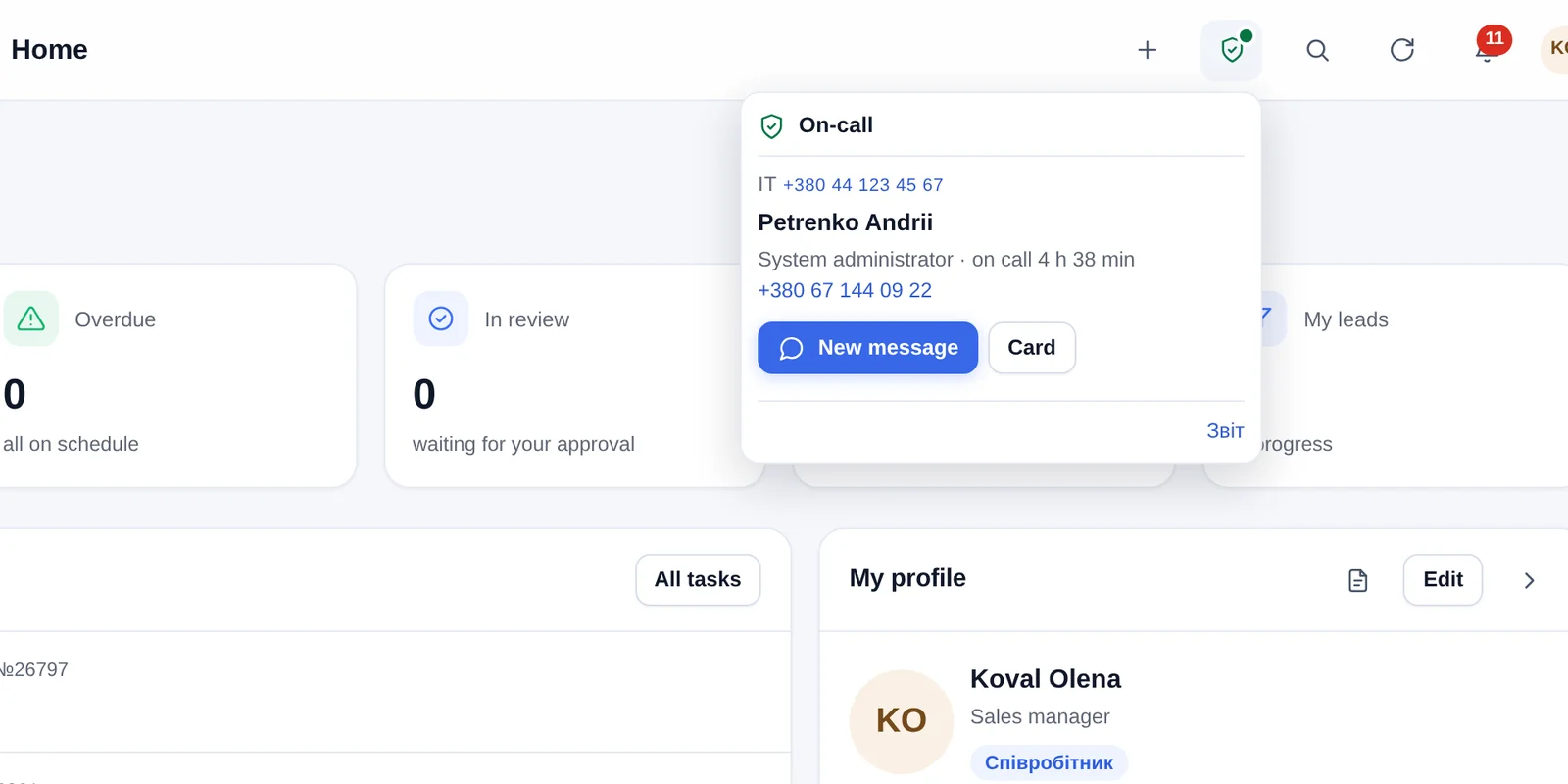
  • Everyone else sees a badge in the top bar. Who is on call, their role, how long they have been reachable, their phone and the service phone — and a “Message” button that opens a private chat with exactly that person.
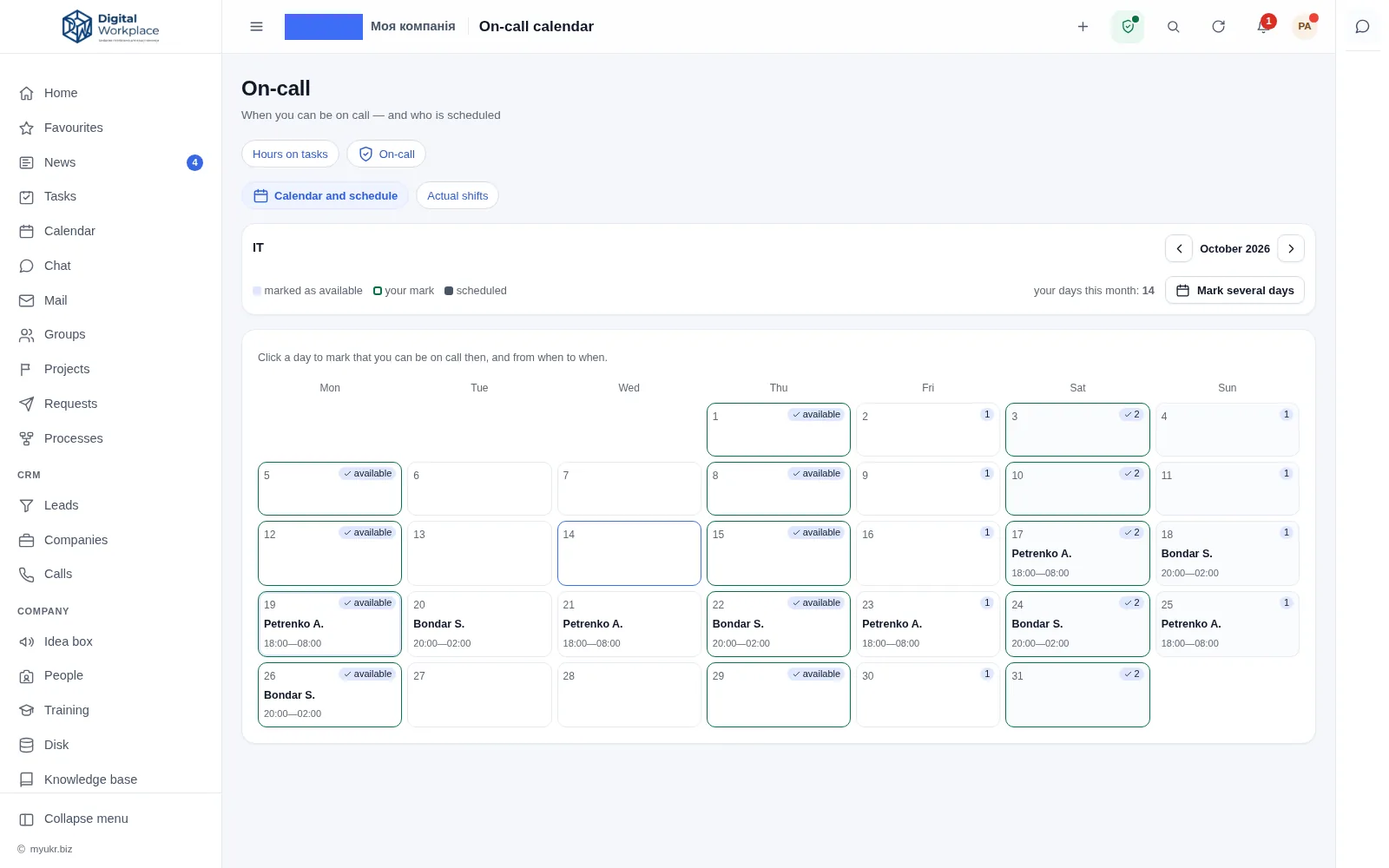
  • A “when I can” calendar. Everyone on the rota marks their own days and hours — “Tuesday from 20:00 to 02:00”, “every weekend”. Whoever builds the schedule sees a ready list of who can be put on each day.
  • A schedule set in advance — with hours. The person is notified the moment they are scheduled, and reminded on the day itself. Once, not every fifteen minutes.
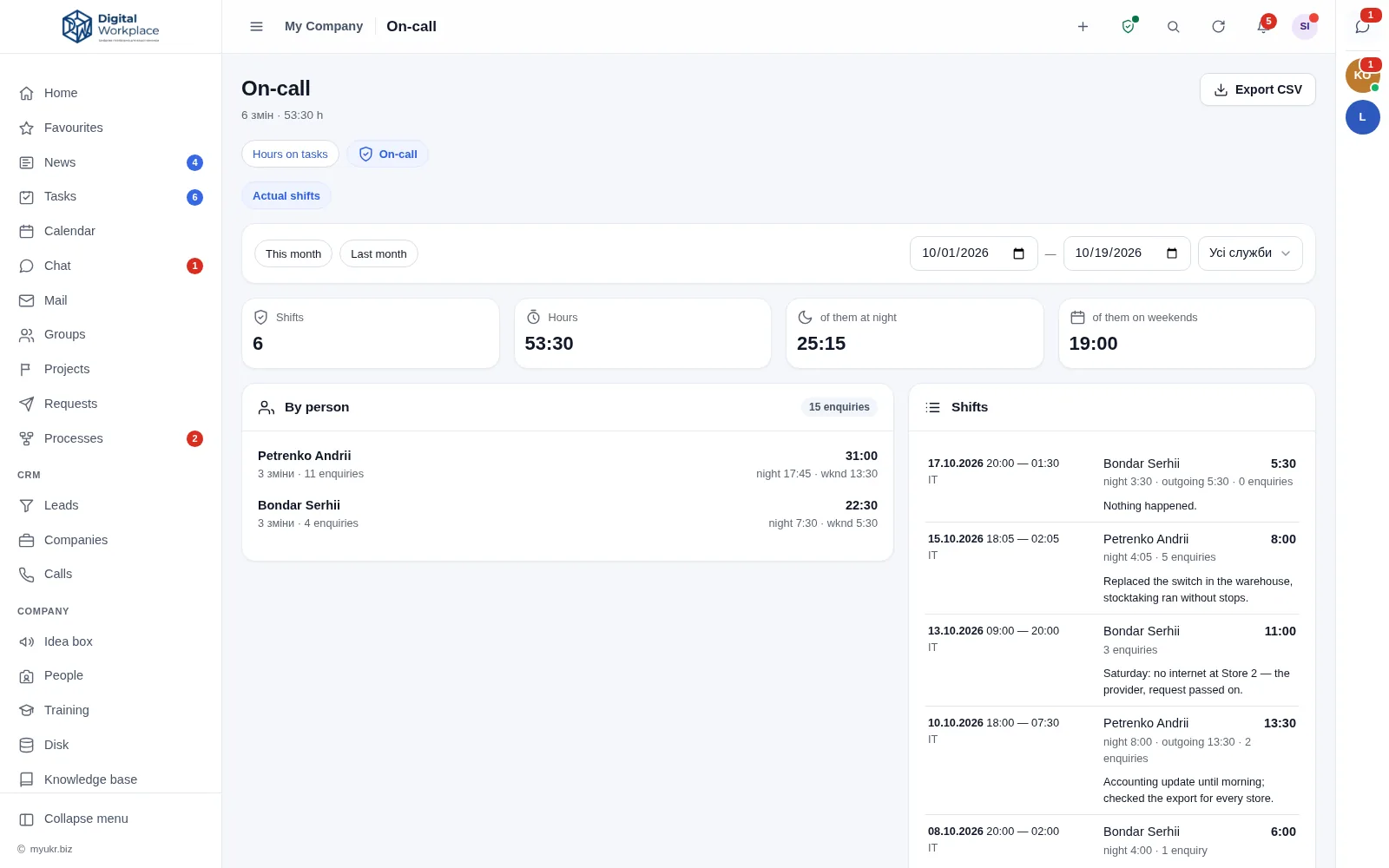
  • A report payroll can use. Shifts and hours per person, night (22:00–06:00) and weekend hours counted separately, how many requests arrived during a shift, the notes, and a CSV export.
  • A forgotten button does not spoil the numbers. The portal reminds the person that the shift is still running and closes it at the service limit — and marks that separately in the report, so a forgotten button is never counted as hours worked.
portal.your-company.com
The on-call card in the portal top bar: the IT service, the service phone, the name and role of the person on call, how long they have been reachable, their phone and the Message button
Fig. 9The badge in the top bar: who is reachable, and how to reach them
portal.your-company.com/time?tab=duty
The on-call calendar for a month: availability marks with hours, the people already scheduled, and a counter of available people on each day
Fig. 10The calendar: who can be on call — and who already is

The schedule stops being guesswork

Until now whoever built the rota collected “can you do Thursday?” over chat: half the people never answered, and the one who was scheduled turned out to be on holiday. Now the marks and the schedule live in the same calendar, and the hours are taken from what the person entered themselves.
  • Several services at once. IT, warehouse, security — each with its own rota, phone, shift limits and schedule.
  • Scheduling “against the marks” is allowed. An outage does not consult the calendar. But the portal says so out loud, so it stays a decision rather than an accident.
  • How much work a shift actually was. Next to the hours — the number of requests: private messages and tasks assigned to the person on call during the shift.
portal.your-company.com/time?tab=duty
On-call report for a period: number of shifts and hours, night and weekend hours separately, hours per person and the list of shifts with notes
Fig. 11The report: hours, night and weekend split out, requests and shift notes

CRM · a six-stage pipeline

No enquiry falls through

A form submission, a call or an email becomes a lead with an owner and a “first contact” task — automatically, within a minute of arriving.
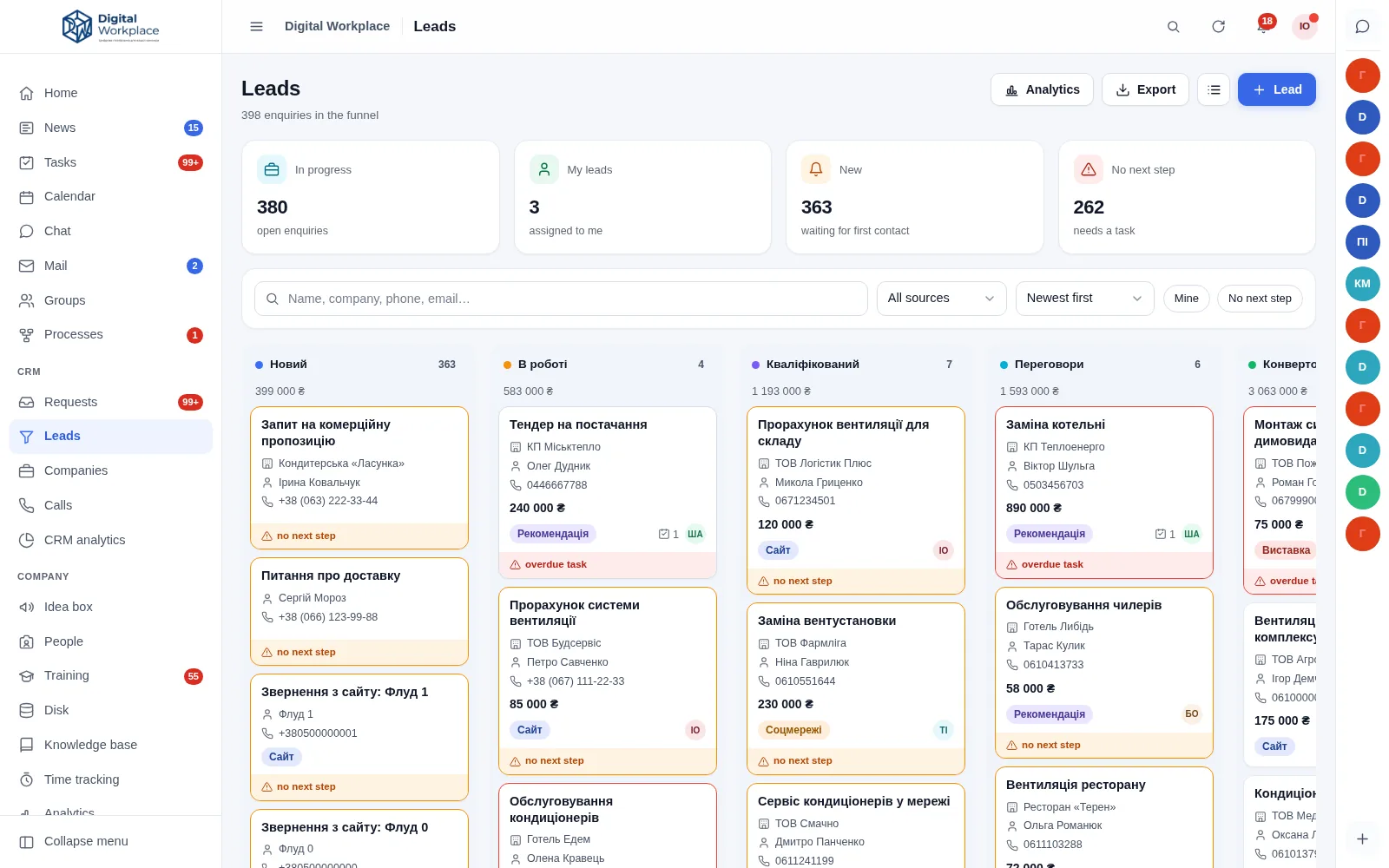
  • An idleness indicator. A lead with no open task turns amber; an overdue task turns it red. You can see at a glance where work has stopped.
  • Round-robin assignment. A new lead goes to whoever has gone longest without one. The rotation survives people being added or removed.
  • Duplicate detection. The portal recognises a number however it was typed: +38 (067) 111-22-33 and 0671112233 are the same client.
  • One-click conversion. A lead becomes a company record together with its contact person, and its tasks move across with it.
  • As many pipelines as you need — each with its own stages, colours and order. “Won” and “lost” are properties of a stage, so in your pipeline a win can be called whatever you call it.
  • Every pipeline has its own access: who can see it and, separately, who can move cards. Wholesale does not see retail.
  • A timeline in the card. Calls, emails, stage changes, tasks and comments in one stream by time, instead of five tabs.
  • Pipelines and workflows both ways. A workflow moves the card between stages, and moving to a stage starts a workflow and notifies the owner.
portal.your-company.com/leads
Lead board with pipeline columns and cards flagged where there is no next step
Fig. 12Lead board. Amber means no next step, red means an overdue task

The funnel shows where clients drop out

How many enquiries reached each stage and how many were lost between them. Clicking a stage opens exactly those leads — so you can look instead of guessing.

Next to it: sources with conversion rates, manager performance, and loss reasons as a pie chart — so you can see whether the problem is your price or the fact that you are calling the wrong people.

New 40 In progress 35 −13% Qualified 31 −11% Negotiation 19 −39% Converted 13 −32% Lead-to-client conversion — 32.5%

Telephony · Binotel

Calls stop being the part nobody can see

The portal pulls conversations from the PBX and files them against the client. Who called, when, how long they talked and how it ended — from the telephony itself, not from the manager’s account of it.
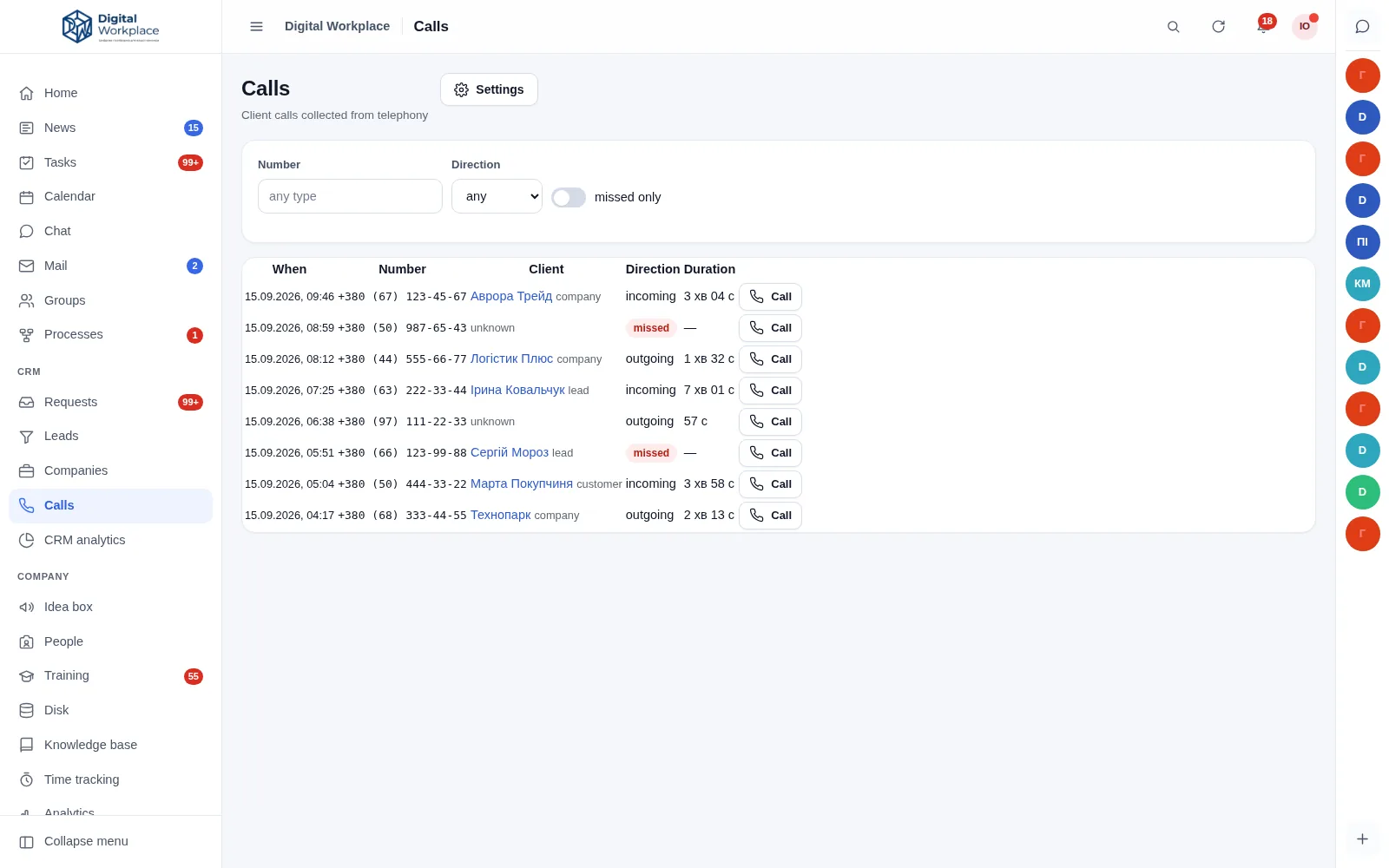
  • Click-to-dial from the record. The PBX rings you first and dials the client once you pick up. In that order deliberately — otherwise the client listens to silence while you hunt for your headset.
  • History inside the record. Lead, company, contact person, store customer. However the number was typed into the portal, the client is still recognised.
  • A missed call becomes a task. “Call back” goes to whoever was called. If somebody already returned the call, no task is created — and never a second one for the same call.
  • The company-wide log takes a separate permission. By default everyone sees only their own calls. Who phoned whom and for how long is surveillance of people, and it is switched on deliberately.
portal.your-company.com/calls
Call log: time, number, client, direction, duration and a dial button on every row; missed calls highlighted
Fig. 13Call log. Missed calls stand out, and every row has a dial button

Knowledge base

An answer to “where is that written down?”

Policies, instructions, call scripts and account details stop living in somebody’s chat history. Search covers titles and article text, so two half-remembered words are enough to find something.
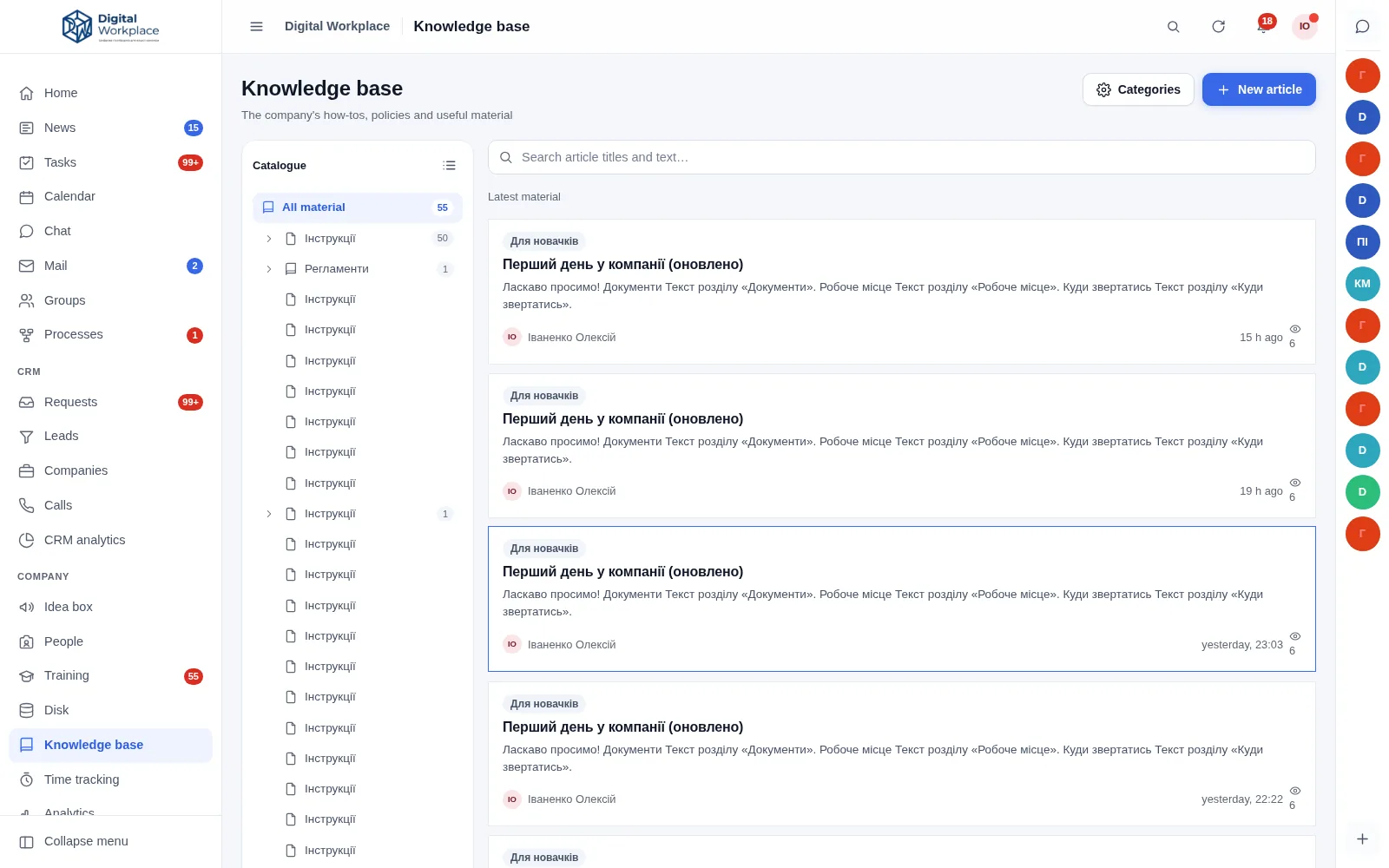
  • Category tree. Pick a section and you see everything in it and in its subsections.
  • Two levels of access. Everyone reads; only the people you designate add and edit.
  • Restricted articles. A document can be opened to chosen roles, departments or individuals — everyone else will not even find it in search.
  • Revision history. The last thirty versions are kept: you can see who rewrote what.
portal.your-company.com/wiki
Knowledge base: the category tree on the left, search at the top and a list of recent articles
Fig. 14Knowledge base: catalogue, search and recent articles

Mail · IMAP

Email in the same window as the work

The mailbox connects over IMAP, the same as in any mail client. One click turns a message into a task: the subject becomes the title, the body becomes the description, and a link back to the message stays on the card.
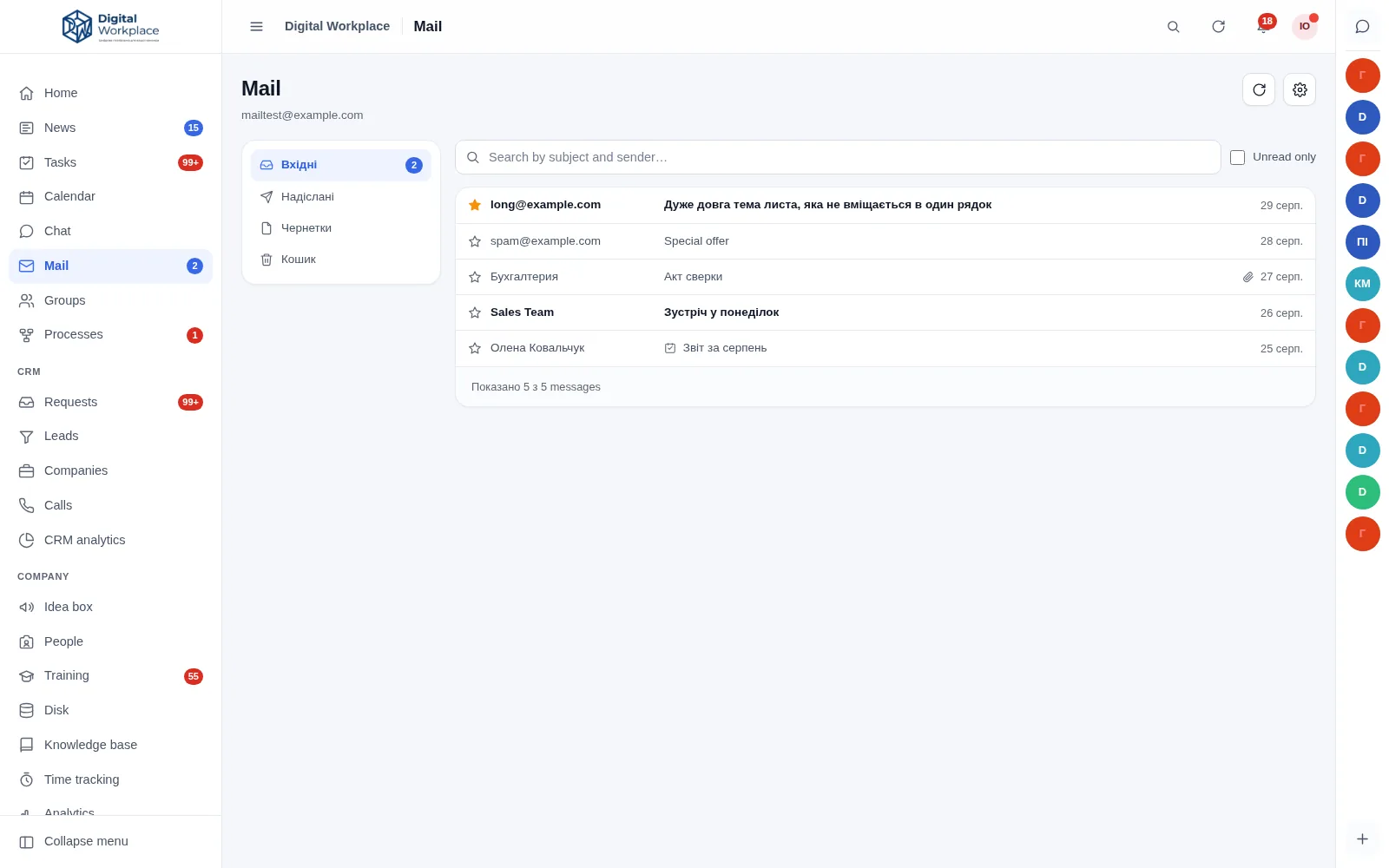
  • We do not store your mail. The database keeps only what the list needs — sender, subject, date. The body and attachments are read from your mail server every time and never touch the portal’s disk.
  • Personal and shared mailboxes. Everyone connects their own; shared ones such as info@ or sales@ are set up by a manager who grants access — reading and writing as the company are separate rights.
  • Remote images are blocked. That is how bulk senders track whether you opened a message. They load only when you ask them to.
  • Passwords are encrypted. The key lives in a file outside the web root, so a database dump on its own yields nothing.
portal.your-company.com/mail
Mail: folder list, search, and inbox messages with attachment and importance markers
Fig. 15Inbox. Unread messages stand out, with attachment markers beside them

Files · company drive

Versions instead of “contract_final_v2_fixed.docx”

A file on the drive stays one file. Every re-upload becomes a new version: you can see who uploaded it, when and how large it was — and any old version can be downloaded or restored.
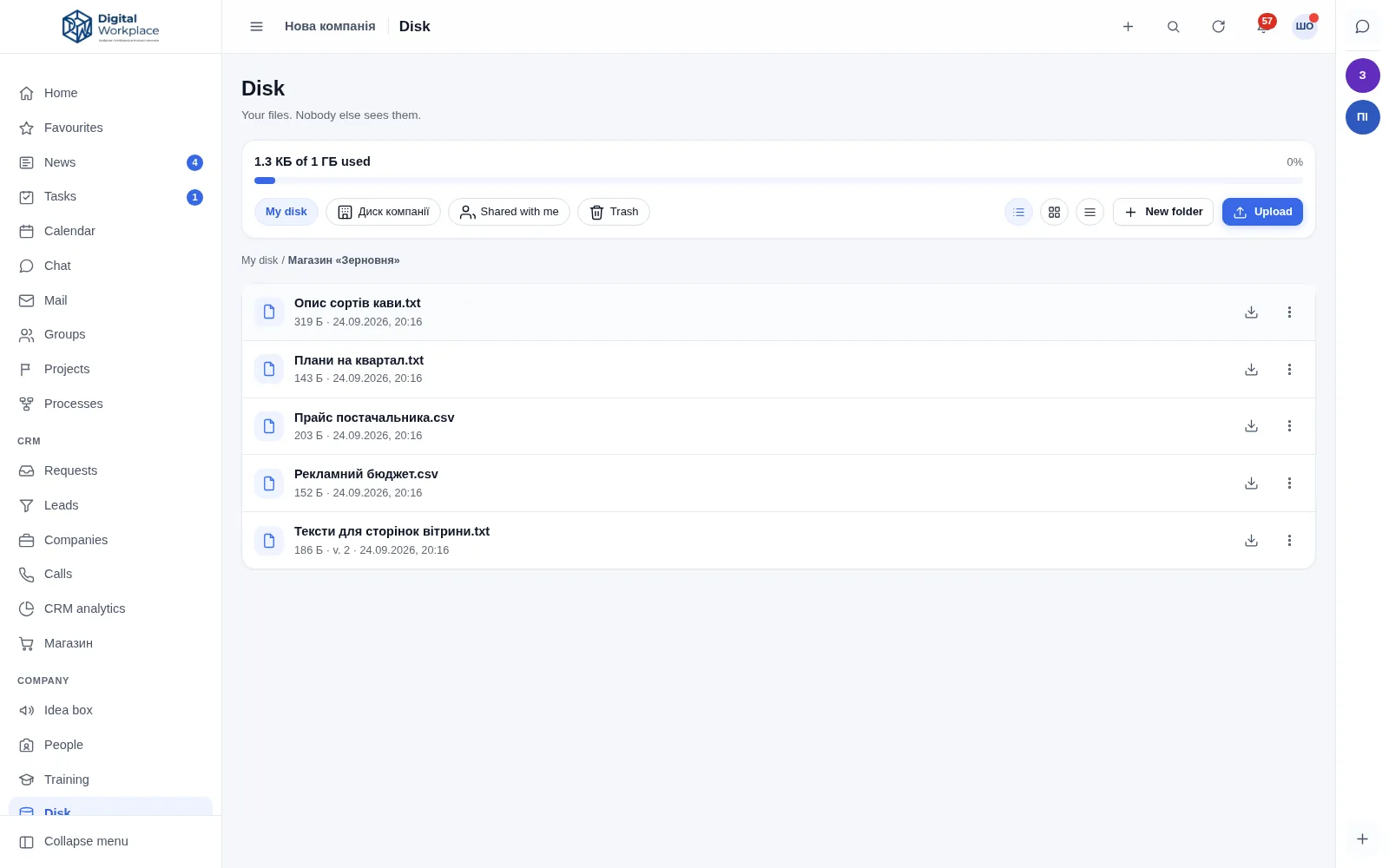
  • Restoring an old version creates a new one rather than rolling back. A step back always stays possible: the portal never erases what already existed.
  • Search looks inside files — docx, xlsx, pptx, odt, rtf, csv, txt and PDF. Results show the snippet around the match, and only files you already have access to can be found.
  • Images and PDFs open in the portal, and neighbouring files are browsed with arrow keys — no download required.
  • Three drives side by side: personal, company and “shared with me”. Quotas, a trash bin, and storage on your own server, S3 or Google Drive.
portal.your-company.com/disk
Files section: a project folder with documents, each showing size and date, one marked as having a second version
Fig. 16A project folder. The “v. 2” mark means the file has history

Training · courses and assessment

A briefing you can prove people took

A course is built from materials and quizzes. The portal assigns it to new hires, reminds them of the deadline and asks for a retake a year later — the way safety and compliance briefings are supposed to work.
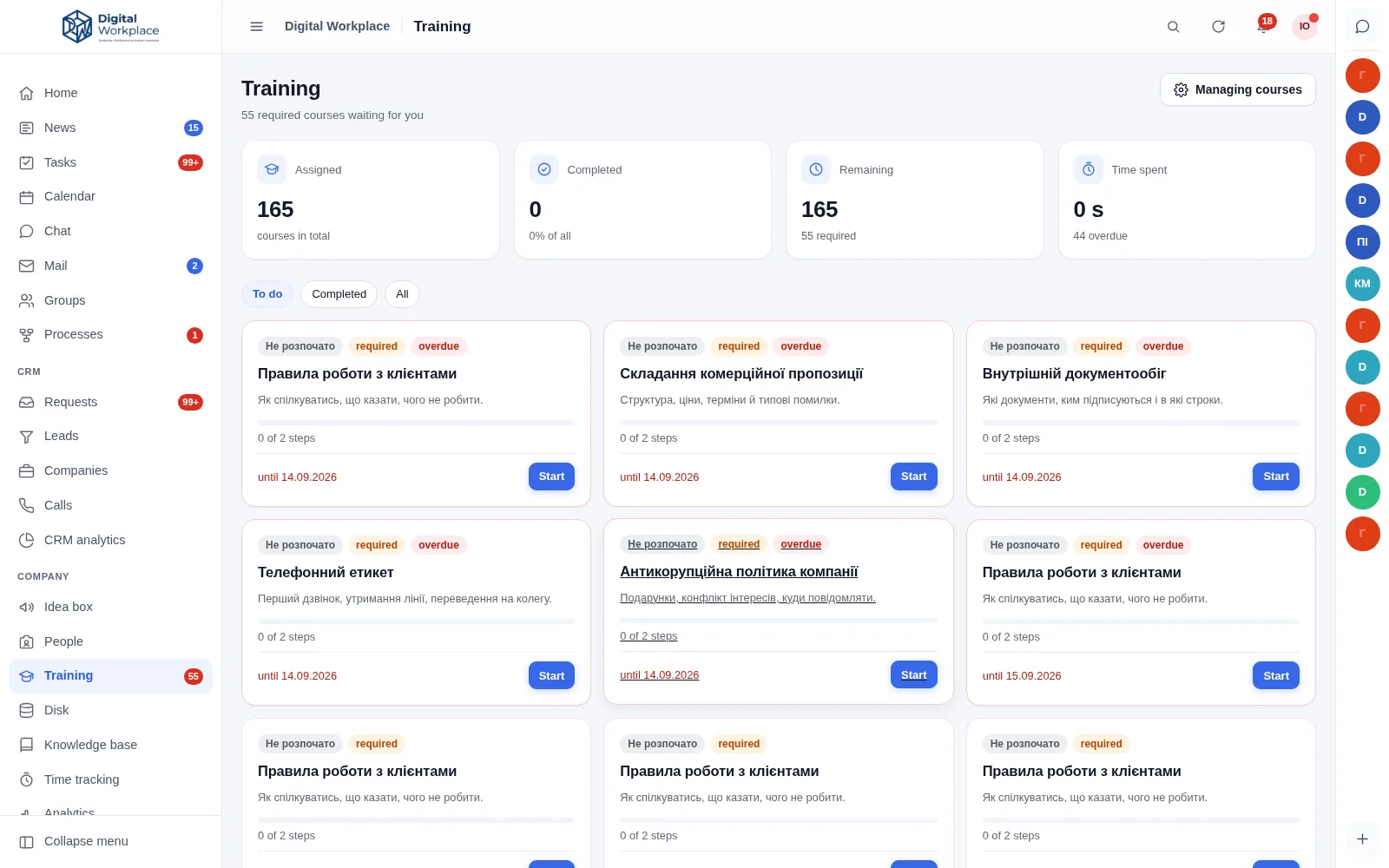
  • Minimum reading time. Enforced on the server, not in the browser: scrolling past in three seconds and clicking “I have read this” does not work.
  • Randomised questions. Everyone draws a different set from the question bank, so passing answers along to a colleague is pointless.
  • A printable certificate and a manager’s summary: who has completed it, who has not, and whose deadline is running out.
portal.your-company.com/edu
Training section: assigned and completed course counts, with course cards and deadlines below
Fig. 17My training: what is assigned, what is mandatory and by when

Idea box · ideas, suggestions, complaints

A suggestion box people actually trust

Every company has tried one. They rarely work, and the reason is always the same: people do not believe it is anonymous — and they are usually right.

Anonymity you can verify

Usually “anonymous” means the author is stored in the database and the interface simply hides the name. Anyone with database access can read it — including whoever restores a backup three years from now. People assume this, which is exactly why they do not write anything.

Here an anonymous submission has no author at all: the column is empty and the audit log holds no record of the submission. The person receives a secret link — the only way back into their own thread to read the reply.
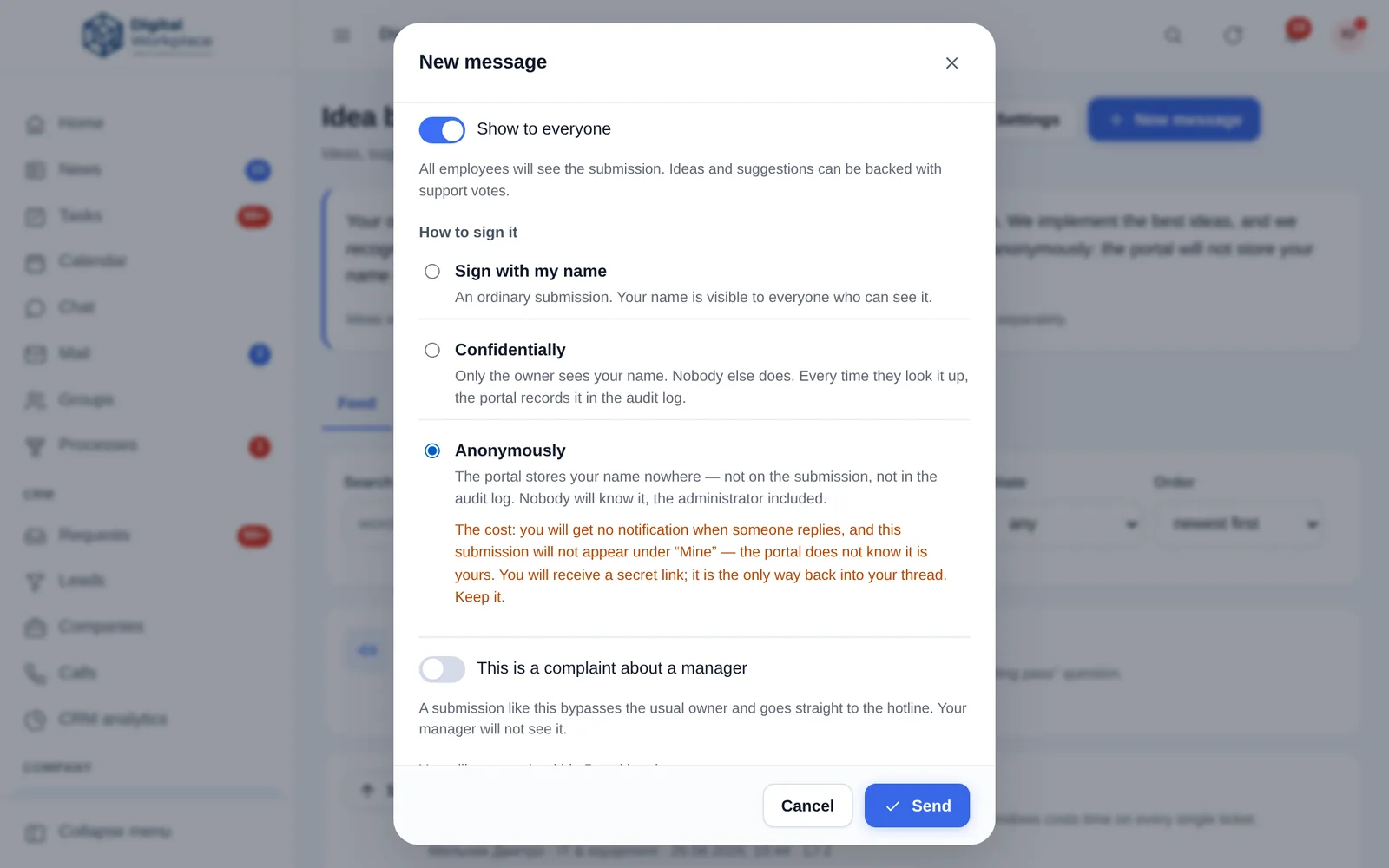
  • The cost is stated up front. Anonymous authors get no notifications, their submission does not appear under “mine”, and the secret link cannot be recovered. The portal says so before you submit, not after.
  • Rewards are still possible. The author clicks “reveal myself” once their idea has been taken up. Without that button, “write anonymously” and “we reward the best ideas” would contradict each other.
  • A middle setting. “Confidential” shows the name only to the person handling it — and every time they look, the audit log records it.
  • Complaints about a manager bypass that manager. They take a separate route to a hotline owner. If such a complaint lands in the queue of the person it is about, the feature is not merely useless — it is harmful.
portal.your-company.com/voice
Submission form: three signing modes — by name, confidential and anonymous; under the anonymous option, a separate note lists what the author gives up
Fig. 19Three signing modes. Under the anonymous one — what it costs you

The other reason these things die

Somebody submits an idea, nothing happens, and three months later nobody submits anything. Shutting the whole thing down then feels reasonable: “nobody was using it anyway”.

So every submission has a deadline for the first reply, not for delivery. An idea may take months to build; what stings is the silence, not the wait.
  • You cannot decline in silence. A rejection requires a written reason. It is the single most useful rule here: “rejected” with no explanation teaches exactly one lesson — do not write again.
  • Overdue items do not vanish. A reminder to the owner, then once to their manager. A short weekly digest goes to management.
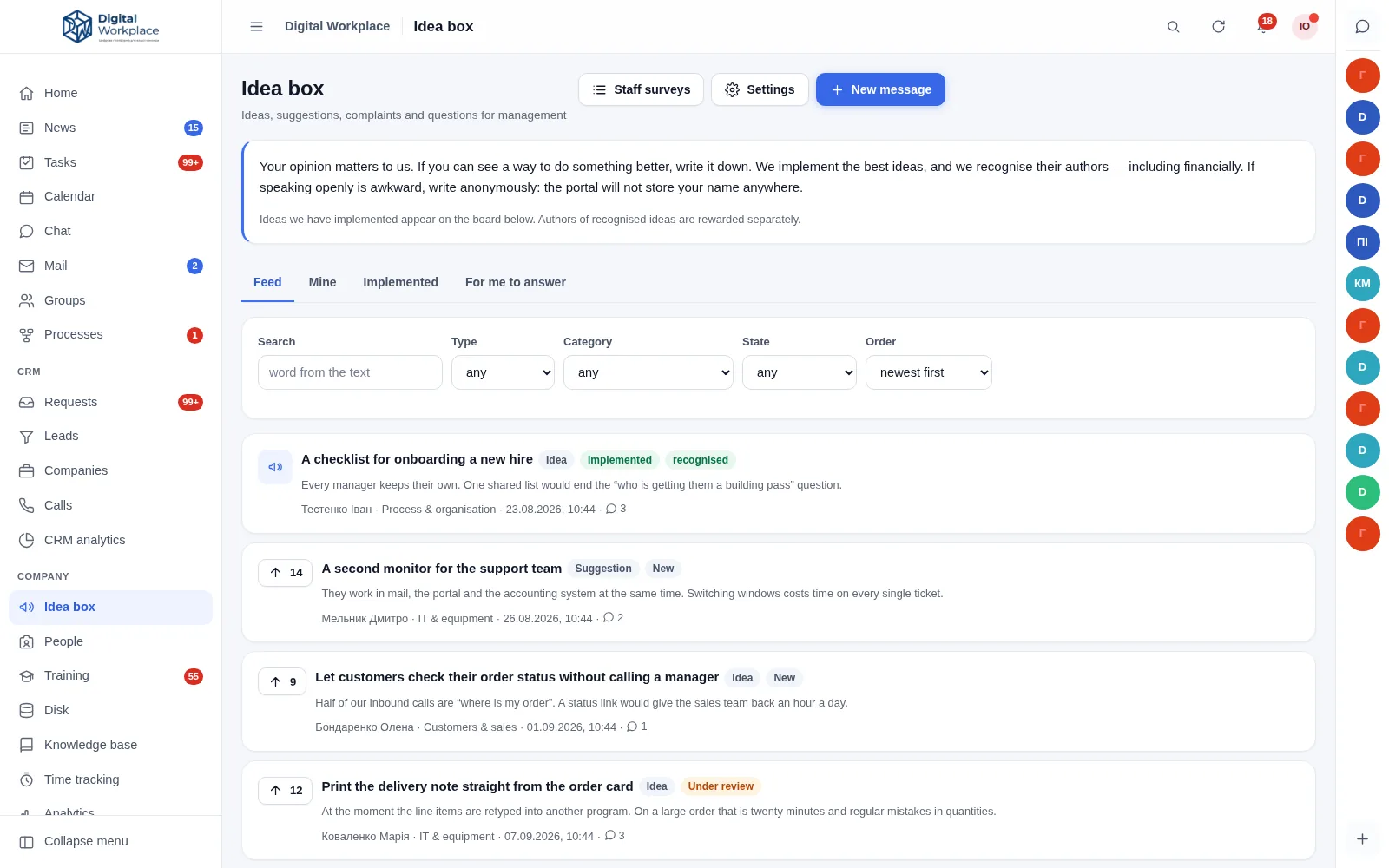
  • An “implemented” board. A list of what was actually built because somebody suggested it, with a note on what changed. The only argument that genuinely makes people write.
  • You can see whether it is working. Submitted / implemented / average time to first reply. If the last two look bad, no interface will save the feature.
portal.your-company.com/voice
Submission feed: ideas and suggestions with upvote counts, status badges — implemented, new, under review — and categories
Fig. 20The feed. Upvotes on the left; category and author beside the status

Staff surveys

Single choice, multiple choice, a 1–5 rating or free text. Addressed to the whole company, a department, a group or a role.

Anonymous surveys cannot be joined back

Answers and “who has responded” live in separate tables with no shared key, and timestamps in both are rounded to the hour — otherwise they could be matched on the second.

Categories with their own owner

Working conditions, process, IT, customers, safety. One person for every category is a bottleneck: within a month they fall behind and the whole thing looks dead.

Upvotes on ideas only

Complaints deliberately have none: a complaint with forty votes is a labour dispute, not a popularity contest.

Notifications · phone, desktop, Telegram

A reminder that arrives even with the portal closed

The portal pushes notifications to a phone and a desktop at the same time — to every device where a person switched them on, and the second one does not displace the first. Deadlines, new leads and anything that matters are mirrored to Telegram as well: that message arrives even with the portal closed.
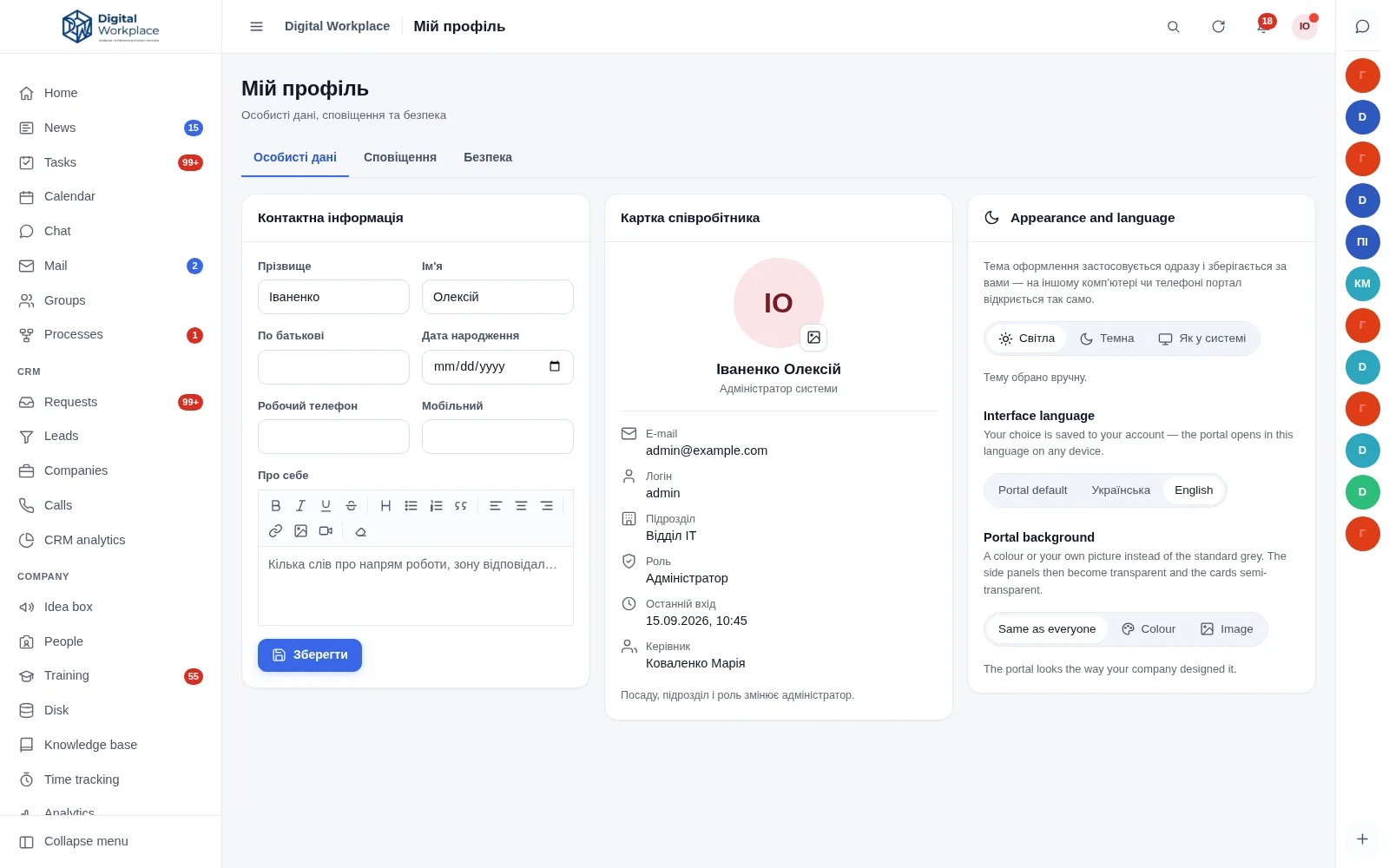
  • Everyone configures their own. Seven notification types as separate switches: deadlines, task events, CRM, news, groups, chat, morning digest.
  • Quiet hours. At night the bot stays silent but loses nothing — it all arrives in one batch in the morning.
  • Morning digest. One message at 09:00: today’s tasks, what is overdue, leads with no next step.
  • Connected in ten seconds. The employee opens their profile, gets a code and sends it to the bot.
  • You can see why nothing arrives. The device list shows the time of the last notification and, when one failed, the error text. That is the only honest answer to “it does not work for me”.
  • The bell folds duplicates. Instead of fifty lines about one task — one line that says “49 more”.
  • The bot works both ways. Buttons under a notification: approve a request, take a task, push it to tomorrow. A reply to the bot’s message becomes a comment inside the task itself.
  • Commands for the daily routine. /tasks, /today, /new — see your tasks and create one without opening the portal.
Portal deadline, lead, comment Queue quiet hours, retry on failure Telegram a message with a button EVENT DELIVERY ≈ 1 MIN The notification still appears in the portal’s own bell — these switches only control what is mirrored to the messenger.
portal.your-company.com/profile
The Notifications tab in a profile: Telegram connected, with per-type switches and quiet hours
Fig. 21Notification settings in the employee’s profile

Assistant · inside the sections

The model can run on your own server

The assistant does not live in a separate “AI chat”. It sits where the work is: in an email, an enquiry, a task, a chat and any text field. A “✨” button next to it — that is all.

Portal mail · tasks · chat Your own model LM Studio, your server Cloud model with your API key Usage and limits who and how much monthly cap WITH YOUR OWN MODEL NO TEXT EVER LEAVES THE BUILDING
  • In mail. Summarise a long thread, draft a reply in your own tone, turn an email into a task with a deadline.
  • In enquiries. A summary of a long message and a first draft of the answer — you still edit it, but you never start from a blank page.
  • In tasks. Break a large task into steps — as a checklist you can edit.
  • In any text. Fix the mistakes, shorten, expand, make it more formal, translate — right in the editor.
  • Your own model keeps the text in-house. LM Studio on your own server, and not a line goes to anyone else’s cloud. Prefer a cloud model — that works too, with your key.
  • Spending is visible and can be capped. Usage per person and per section, a monthly limit, and “may use the assistant” as an ordinary role permission.

Integrations · REST API

The portal talks to the rest of your software

A website form becomes a lead, your accounting system creates a shipping task, and an external system learns about a closed deal the same second.

Digital Workplace your server Website form POST /hooks/lead Your accounting POST /hooks/task Telephony, mail Bearer API key Outbound webhooks HMAC signature Telegram bot notifications PWA on the phone offline cache
  • Website enquiries. The form posts to the portal and a manager is calling within the minute. A repeat enquiry from the same number does not create a duplicate.
  • API keys with scoped permissions. An external system gets exactly what it needs and nothing more.
  • Signed outbound webhooks. Your system can verify the event really came from the portal. Failed deliveries are retried on a schedule.
  • PWA. The portal installs on a phone like an app — home-screen icon and instant start.

Interface · light and dark

Equally usable on a laptop and a phone

One interface across devices. Each person picks their theme — light, dark or follow the system; the choice is stored against the account and follows them to other devices.
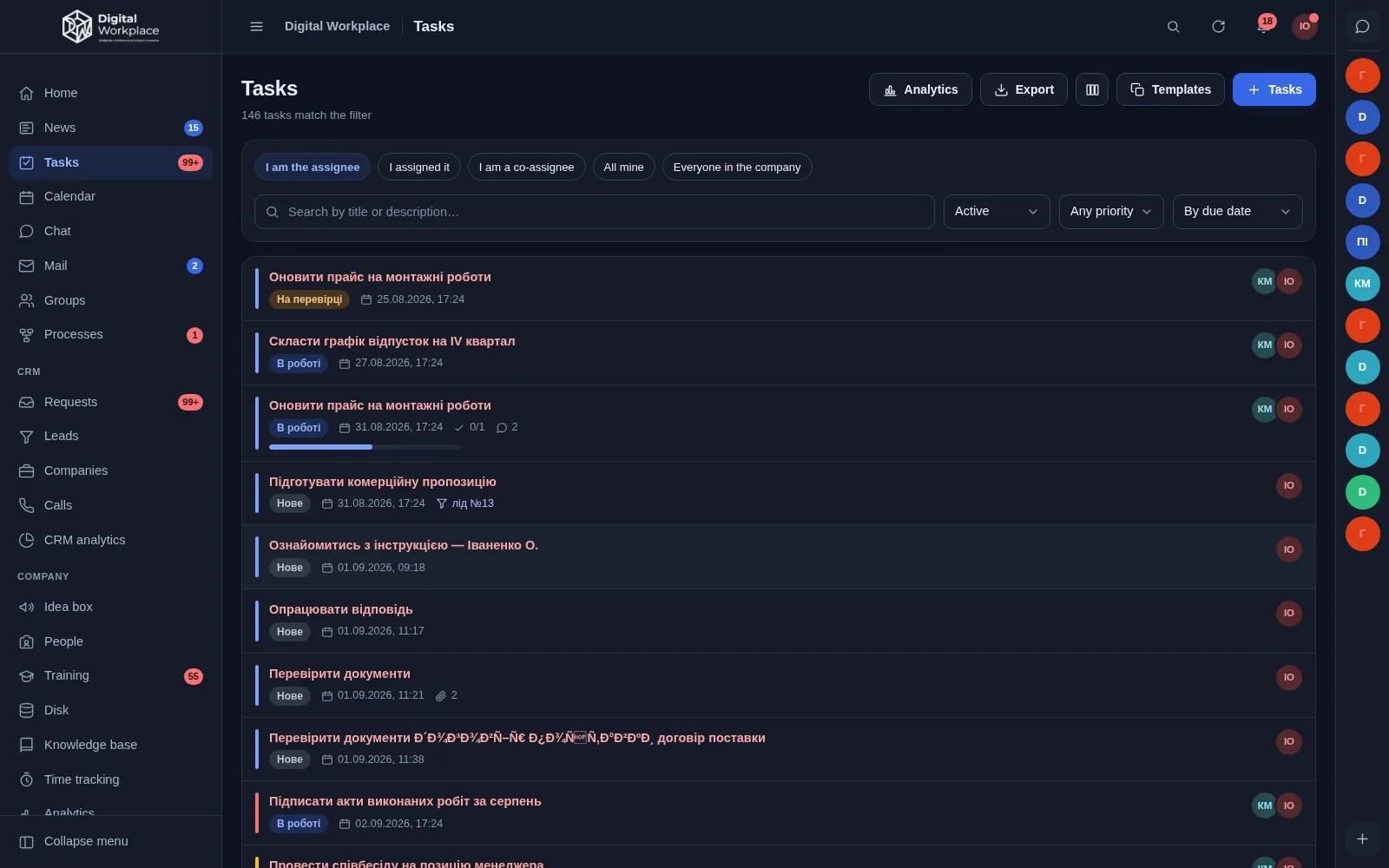
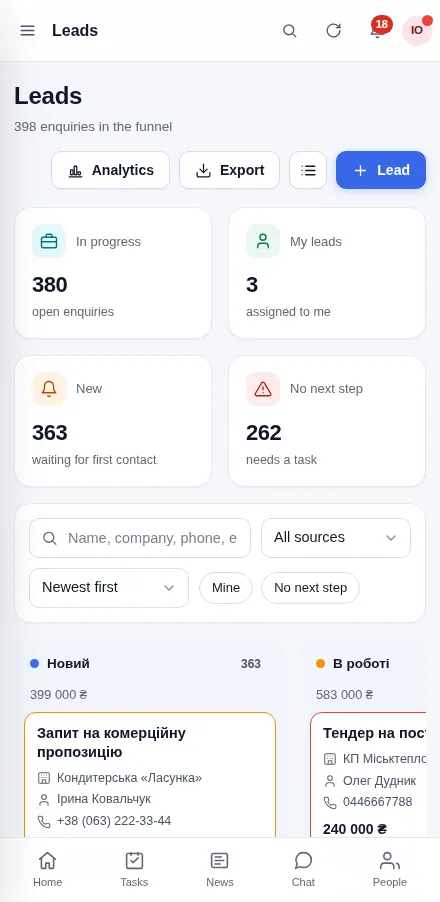
dark theme
Task list in the dark theme
Fig. 22A real dark theme, not inverted colours
Lead board on a phone screen
Fig. 23The same portal on a phone

Security · access · retention

Permissions per action, not “admin and everyone else”

Roles are assembled from individual permissions: who sees all tasks, who edits companies, who opens analytics, who gets into the admin panel.

40
separate permissions
Roles fit your org chart, not the other way round
2FA
two-factor sign-in
Google Authenticator and other TOTP apps
100
% audit coverage
Who changed what and when — exportable
ZIP
backups
On a schedule or on demand, database and files

Credentials live outside the web root

The database credentials file sits one level above the site root, where the web server cannot reach it. So do uploaded files.

Audit log and active sessions

You can see which devices someone signed in from, and end any session remotely.

Password policy

Minimum length, required character classes, expiry, lockout after failed attempts — all set in the admin panel.

Updates without reinstalling

A new version is uploaded as files and the database structure migrates itself. Data stays put, settings are preserved.

Sign in with Google or Microsoft

If the company already lives in a work account, the portal accepts that sign-in. Off by default, enabled with a checkbox, and only for people who already exist in the portal: a stranger cannot create themselves this way.

Roll back to the previous version

If an update does not work out, the portal returns to the previous version in one click, from a snapshot taken before the update. Browser errors that appear after an update are collected and shown to the administrator.

A “close the portal” switch

If something goes wrong, the portal closes for everyone but the administrator — in one action, confirmed with a password. A personal entry link still gets you in, so the situation can be sorted out calmly.

File watchdog

Every night it compares the disk against the release file list and names three different things separately: file changed, file foreign, file missing. That is how a break-in is noticed — not by “the portal feels odd today”.

Uploads are checked by content, not by name

Double extensions and code inside an “image” do not pass, SVG is sanitised on upload, and scanner bots are blocked after a few requests for things like /wp-login.php.

Pricing · two ways

Buy it outright or pay monthly

The price depends on the size of the company and the customisation you need, so it is quoted individually. One call is usually enough to work it out.

Option 1

One-time licence

You own the system and deploy it on your own server. After that it is yours, permanently.

  • All modules, no limit on user count
  • Installation and migration of your existing data
  • Training for staff and for the administrator
  • Customisation to your processes — quoted separately
Payment one-time · price on request
Request a quote
Option 2

Subscription

Start without a large up-front payment. The portal still runs on your server — the subscription covers support and ongoing development.

  • The same modules, no user limits
  • Version updates and technical support included
  • Help with backups and upgrades
  • Switch to the one-time licence at any point
Payment monthly · price on request
Discuss terms

Contact

Tell us how your company works

One call is enough to work out which modules you actually need and what it will cost. We can show you the system running the same day.

+380 97 384 64 72

Call or message us — we answer on both

Digital Workplace · corporate portal Built in Ukraine +380 97 384 64 72 English digitalworkplace.myukr.biz